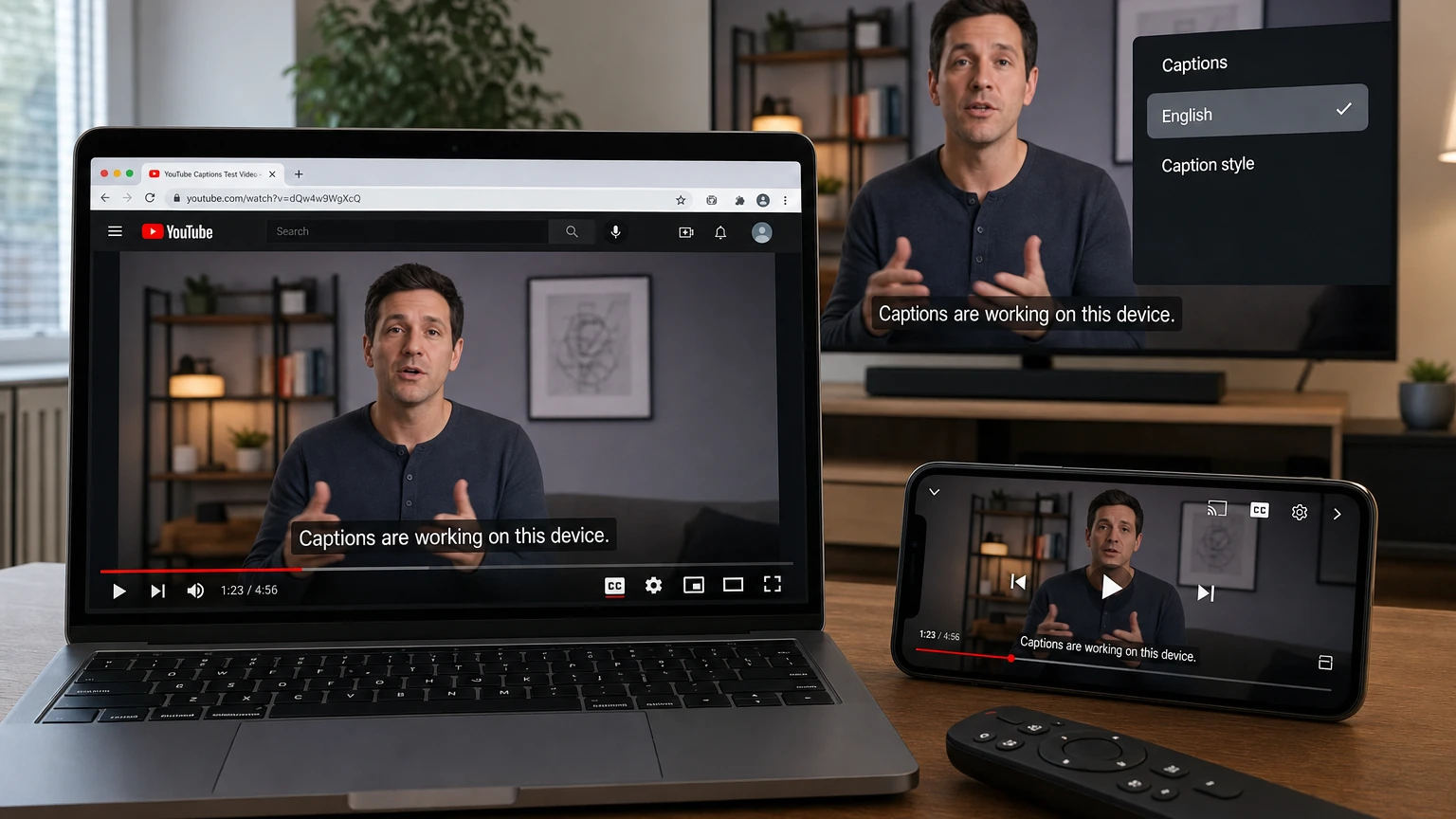
When YouTube captions are not working, the first question is not which setting to reset. It is whether the video actually has a caption track.
If the CC button is missing, the uploader may not have provided captions and YouTube may not have generated them. If the CC button is present but no text appears, the problem is more likely to involve the app, browser, account, caption style, or device. Separating those two situations prevents a lot of unnecessary troubleshooting.
Quick fix: what to try first
- Open another video that you know has captions. On a computer, you can search YouTube and apply the Subtitles/CC filter to find one.
- Turn CC off and back on. On a computer, click inside the player and press C. On a phone, tap the player and then the CC button. On a TV, pause the video and open Captions.
- Test the same video on a second device. Compare the YouTube app with a browser, or compare your TV with your phone.
- Restart the affected app or browser. Reloading only the video may not reset a stuck player session.
- Update YouTube, your browser, and the device operating system.
- Disable browser extensions or content blockers temporarily. Ad blockers, privacy tools, script blockers, and video-enhancement extensions can interfere with player elements.
If captions fail on only one video, they are probably unavailable or defective for that upload. If they fail on several known-captioned videos but work on another device, focus on the device where they are broken.
Diagnose the problem in one minute
| What you see | Most likely explanation | Best next step |
|---|---|---|
| No CC button on one video | That video has no available caption track | Try another captioned video or check for a transcript |
| CC appears on a TV but cannot be selected | The video does not offer captions | Test another video |
| CC turns on, but no words appear | Player, style, extension, app, or rendering problem | Reset caption appearance and test another browser or device |
| Captions work in a browser but not the app | App-specific problem | Force-close, update, clear cache where available, or reinstall |
| Captions work while signed out | Account preference or saved-session problem | Review caption defaults, then sign out and back in |
| Original captions work, but translated captions do not | Auto-translate is failing rather than CC itself | Reselect the source captions, retry translation, or switch devices |
| Captions fail everywhere on many videos | Possible service, network-filtering, or broader playback problem | Try another network, wait briefly, and send feedback if it continues |
Use a known-captioned video as your control test
Do not diagnose the feature with a random upload. On desktop YouTube, search for a topic, choose Filters, and select Subtitles/CC. Videos returned through that filter should have an available caption track.
You can also open the video description and look for Show transcript. A transcript is available only when the video has captions. If the transcript contains text but the player displays nothing, the caption track exists and the problem is likely in the player or its appearance settings.
Is YouTube CC missing or merely invisible?
These symptoms look similar but require different solutions.
- The CC button is missing: YouTube is not offering captions for that video. A viewer cannot force the standard YouTube player to create a caption track on demand.
- The button is visible but unavailable: This can happen on TVs when the player shows the control even though the current video has no captions.
- The CC button activates but no text appears: The track may be loading incorrectly, an extension may be modifying the player, or the text and background style may have become unreadable.
- Captions appear in the wrong language: Open the caption menu and select the original track or another listed language. If available, Auto-translate will appear in the same area.
- Text is permanently embedded in the picture: Those are open or burned-in captions. The YouTube CC control cannot hide or change text that is part of the uploaded video image.
How to turn on YouTube captions
On a computer browser
- Open the video and move the pointer over the player.
- Click the CC button in the lower-right area of the player.
- Alternatively, click inside the player and press C.
- For language options, choose Settings, then Subtitles/CC.
To make captions appear automatically when available, open your YouTube account settings, choose Playback and performance, and enable Always show captions. You can also enable the option to include auto-generated captions when available.
On Android
- Play the video and tap the picture once to reveal the controls.
- Tap the CC button.
- For language or additional options, open the player settings and choose Captions.
You can also open your YouTube profile, go to Settings, and select Captions to manage default caption visibility, size, and style. YouTube also offers a mobile and tablet option to show captions when the video is muted.
On iPhone or iPad
- Tap the playing video to show its controls.
- Tap the CC button.
- Open the player’s Captions menu to choose another available language.
On iPhone and iPad, default caption appearance is controlled through the operating system. Go to Settings, Accessibility, and Subtitles & Captioning. From there, you can enable Closed Captions + SDH and create or select a caption style.
On a smart TV, streaming device, or game console
- Pause the YouTube video.
- Move to the Captions control.
- Select an available language.
- Open Caption style if you need to change the font, background, window, or appearance.
If the Captions control does not appear, captions are not available for that video. If the control appears but cannot be selected, the result is effectively the same: the current video does not offer a usable track.
Fix YouTube captions not working in Chrome, Edge, Firefox, or Safari
1. Reload the player completely
Turn CC off, refresh the page, restart playback, and turn CC on again. If the problem began after switching videos in a playlist or leaving a tab open for hours, close that tab and open the video in a new one.
2. Try a private or incognito window
Open the same video in a private window. If captions work there, the likely causes are an extension, stored site data, or a signed-in account setting. A private window is a diagnostic test, not necessarily the permanent solution.
3. Disable extensions that modify YouTube
Temporarily turn off extensions one at a time, prioritizing:
- Ad and content blockers
- Privacy and tracking-protection extensions
- Script blockers
- Subtitle or translation extensions
- YouTube layout and playback enhancers
- Dark-mode or page-style tools
Reload YouTube after each change. If captions return, leave the conflicting extension disabled on YouTube or remove it. Avoid installing an unknown subtitle extension as your first fix; extensions that can read page content may also be able to access information displayed in your browser.
4. Clear YouTube site data
Clear cookies and cached data for YouTube rather than erasing your entire browser history if your browser offers per-site controls. This resets stored player state and signs you out, so make sure you know how to access your Google account before proceeding.
5. Reset caption appearance
Open Settings, Subtitles/CC, and Options in the player. YouTube lets you change the font, color, size, opacity, background, window, and character edge style. Choose Reset if the text may be transparent, extremely small, or blending into its background.
6. Update or change browsers
Update your browser and operating system. YouTube recommends current versions of major supported browsers. If the issue continues, test the same video in a different browser. A result that fails in one browser but works in another points to that browser’s profile, extensions, site data, or graphics configuration.
7. Test while signed out
Sign out of YouTube or use a private window without signing in. If captions work, sign back in and review Playback and performance. Toggling the default caption options off, saving, and then turning them back on may refresh a stuck preference.
8. Test hardware acceleration only as a last resort
If captions disappear only in full screen, flicker, or fail alongside other visual elements, temporarily changing the browser’s hardware-acceleration setting may identify a graphics-rendering conflict. Restart the browser after changing it. If the test makes no difference, restore the original setting.
Fix YouTube subtitles not working on Android or iPhone
Start with the app, not the entire phone
- Force-close YouTube and reopen it.
- Turn CC off and back on.
- Test several videos with known captions.
- Update the YouTube app.
- Restart the phone or tablet.
- Compare the app with YouTube in a mobile browser.
If captions work in the browser but not the app, your connection and the video’s caption track are probably fine. Continue with the app-specific steps below.
Android: clear the YouTube cache
Android menu names vary by manufacturer, but the usual path is Settings, Apps, YouTube, Storage & cache, and Clear cache. This removes temporary files without performing the more disruptive reset caused by clearing all app storage.
If clearing the cache does not help, update Android and YouTube. Clearing storage or app data is a later step because it resets the app and may remove local settings or downloaded data. On devices where YouTube cannot be uninstalled completely, you may be able to uninstall its updates and then update it again through Google Play.
iPhone and iPad: restart, update, then reinstall
Force-close YouTube, reopen it, and restart the device. Check the App Store for a YouTube update and install available iOS or iPadOS updates.
If the app remains the only place where captions fail, delete and redownload YouTube. Reinstallation can replace damaged local app files, although it may remove downloaded videos and require you to sign in again.
Check mobile caption style
If YouTube CC is enabled but text is unreadable, restore a standard caption style. On Android, review YouTube’s caption size and style settings. On iPhone and iPad, use Settings, Accessibility, and Subtitles & Captioning.
Also exit picture-in-picture, full-screen overlays, or other temporary player modes while testing. The goal is to determine whether captions fail everywhere in the app or only in a particular viewing mode.
Fix YouTube captions not showing on a smart TV
TV apps add another layer because the YouTube app, streaming device, television software, remote, and account session can each affect the experience.
- Pause before opening captions. This makes the player controls easier to navigate with a remote.
- Test a different captioned video. Do not assume the first upload offers CC.
- Quit and reopen YouTube. Returning to the TV home screen may not fully close the app on every platform.
- Power-cycle the TV or streaming device. Disconnect it from power, wait several seconds, reconnect it, and reopen YouTube.
- Update both the YouTube app and system software.
- Sign out and back in. You can also test Guest mode or a different household account.
- Reset Caption style. Check for transparent text, a transparent background, unusual positioning, or an excessively small font.
- Cast the same video from a phone. If cast playback shows captions but the native TV app does not, the native app or TV software is the likely source.
Some TVs and streaming boxes also have system-level accessibility settings. Use YouTube’s in-player caption menu first, then check the device’s accessibility menu if the app’s style or default behavior remains wrong. The interaction between app-level and device-level settings differs by platform.
Why captions are unavailable on only one video
YouTube cannot display standard CC unless a caption track exists. The creator may have uploaded one, added captions in YouTube Studio, or received an automatically generated track.
Automatic captions are not guaranteed for every upload. They may still be processing, or YouTube may be unable to generate them because of factors such as:
- An unsupported spoken language
- Poor audio quality or speech that cannot be recognized reliably
- A long or unusually complex video
- A long silent section at the beginning
- Multiple people speaking over one another
- Multiple languages being spoken at the same time
A newly uploaded video may gain automatic captions after additional processing. Live streams can also have different caption availability from their archived versions. After a stream ends, the recording may receive a newly generated caption track rather than retaining exactly what appeared live.
If the CC button is absent only on that upload, changing phones, browsers, or accounts will not create the missing track. Your practical options are to wait, look for another version, check whether the creator has provided a transcript elsewhere, or ask the creator to add captions.
Fix YouTube Auto-translate captions that disappear
Auto-translate and captions are related but separate layers. Translation needs an existing source caption track. It cannot translate a track that does not exist.
- Open Subtitles/CC or Captions.
- Select the video’s original caption language first.
- Confirm that the original words appear.
- Return to the menu, choose Auto-translate, and select the target language.
If the original captions do not work, fix that problem first. If the original captions appear but vanish only after you choose a translated language, you have isolated the failure to Auto-translate.
Turn captions off, select the source language again, and retry the translation. Then test the same video on another device or while signed out. A temporary translation failure may affect a specific player, account session, language combination, or video even though ordinary captions still work.
What if captions are blank, unreadable, delayed, or incorrect?
Captions are turned on but invisible
Reset caption style. Check text opacity, background opacity, size, color, and edge style. Also test standard mode instead of full screen or a minimized player. If Show transcript contains text, the video has captions and the issue is visual rather than a missing track.
Captions are out of sync
Test another video. If only one upload is mistimed, the creator’s caption timing is probably incorrect. Viewers generally cannot repair a creator-provided track. Automatically generated captions may also contain timing or transcription mistakes.
Captions show incorrect words
Automatic captions are created with speech recognition and can misinterpret accents, names, dialects, overlapping speech, jargon, or noisy audio. Switch to a creator-provided track if the menu offers one. Otherwise, the creator must review and edit the captions in YouTube Studio.
The wrong language keeps appearing
Open the caption menu and explicitly select the desired track. Also review your YouTube language and caption defaults. On shared TVs, confirm that the correct household profile is active because another account may have different preferences.
Use this scope test before making major changes
| Scope | How to confirm it | What to fix |
|---|---|---|
| Video-level | Only one upload lacks working CC everywhere | The caption track is unavailable, processing, or defective |
| Device-level | The same videos work on another device | App, browser, extensions, cache, style, or device software |
| Account-level | Captions work signed out or with another account | Caption defaults, language preferences, or saved session data |
| Service-level | Many captioned videos fail across devices, accounts, and networks | Wait, retry, and report the reproducible problem to YouTube |
This framework is more reliable than performing every fix in a generic checklist. It tells you which layer is broken before you clear data, reinstall apps, or reset devices.
If it is your video and viewers cannot see captions
Open YouTube Studio on a computer, select Subtitles, and choose the video. Confirm that a caption track is present and published in the correct language. Review automatic captions rather than assuming they are complete or accurate.
If no automatic track has appeared, allow time for processing and consider the audio conditions that can prevent generation. For important or accessibility-sensitive content, add and review your own captions. YouTube supports uploading caption files, synchronizing a transcript, or entering captions manually.
What not to do first
- Do not factory-reset a TV or phone before testing another video, device, and account.
- Do not reset your router first when video and audio play normally. Test another network only after simpler caption checks.
- Do not assume every YouTube video has CC. Automatic captions are broad, but they are not universal.
- Do not confuse YouTube CC with system-generated live captions. Android, iOS, browsers, and TVs may offer separate accessibility features with different controls and accuracy.
- Do not install an untrusted subtitle extension before checking the built-in player, app, and account settings.
When to report the problem to YouTube
Send feedback when several known-captioned videos fail in the official YouTube app or website after you have restarted, updated, and tested another device. Submit feedback immediately after reproducing the problem so the report is connected to the affected session.
Include the video title or link, device model, operating-system version, YouTube app or browser version, and whether the problem occurs while signed out. State whether the CC button is absent, unavailable, active but blank, or broken only with Auto-translate. Those distinctions make the report much more useful than saying only that subtitles do not work.
The bottom line
If YouTube captions are not working, test a known-captioned video and the same video on another device before changing anything major. A missing CC button usually means captions are unavailable for that upload. A working button with no visible text points instead to the player, caption appearance, app, browser, account, or device.
Once you identify whether the failure follows the video, device, or account, the fix becomes much clearer: choose a valid track, reset its appearance, remove browser interference, refresh the app, or wait for the creator or YouTube to provide captions.
Make YouTube smarter with NextWatch AI
Use AI search, smarter discovery, playback tools and speed testing directly in your browser.
Add NextWatch AI to Chrome ↗