

Telstra Speed Test: Why Fast NBN & 5G Can Still Feel Slow — And How to Fix It
Australia's practical, evidence-first guide to understanding Telstra speeds, NBN connections, 5G home internet, outages and Wi-Fi problems — and to moving from a single result into an intelligent diagnosis.
Want to test your connection first? Run the independent NextWatch AI Telstra Speed Test to measure your connection, then use this guide to interpret the result and decide what to check next. This is an independent editorial guide, not an official Telstra service.
The big idea: A Telstra speed test can tell you how a particular connection path performs at a particular moment. It cannot, by itself, tell you why the bedroom TV buffers, why an NBN connection slows at night, why a 5G router keeps changing speeds, or whether a reported outage caused your problem. For those answers you need measurement, context, investigation and practical troubleshooting.
Our foundational feature, Speed Test: From Dial-Up to AI — Why One Number No Longer Explains the Internet, explains how the internet evolved beyond a single Mbps number. This Telstra companion takes that argument into Australian households and shows how to apply it.
1. Telstra in Australia: Why One Household's Connection Is Not Another's

Telstra is one of Australia's most recognisable telecommunications providers. But the word “Telstra” on a bill does not identify one uniform delivery technology. A customer might have a home service delivered over the nbn network, a Telstra 5G Home Internet service, a Telstra mobile data service, or another supported access network. The provider relationship is only one part of the physical and digital journey between a device and the internet.
This matters when someone searches for “Telstra speed test”. They may want to confirm a new NBN plan is working, investigate a strange drop in mobile speed, understand evening slowdowns, test Wi-Fi in a distant bedroom or see whether a provider outage is affecting their street. Those are distinct questions. A single result without knowledge of the connection type can be misleading.
For many fixed-line services, the journey runs from a phone, TV or computer through Wi-Fi or Ethernet, the Telstra modem/router, premises equipment and the relevant nbn access technology, then onward through provider networks and the destination service. Telstra can supply the retail service while nbn provides the underlying access network. That division matters when diagnosing where a fault may sit.
On mobile and fixed-wireless connections, distance to a tower, signal quality, obstacles, building materials, available radio spectrum and shared network capacity can matter enormously. A user in a city apartment and another on the edge of regional coverage may both have “Telstra” at the top of their screen yet face very different performance constraints.
NBN Co explicitly explains that performance depends on a chain of factors including the home network, provider, access technology and content service. Read NBN Co's guide to network congestion and Telstra's NBN speed explanations.
The practical consequence is simple: first identify your service type, then compare the right metrics under the right conditions. Without that first step, even an excellent speed measurement may answer the wrong question.
2. The Great Speed-Test Paradox: 240 Mbps, Yet Everything Feels Broken

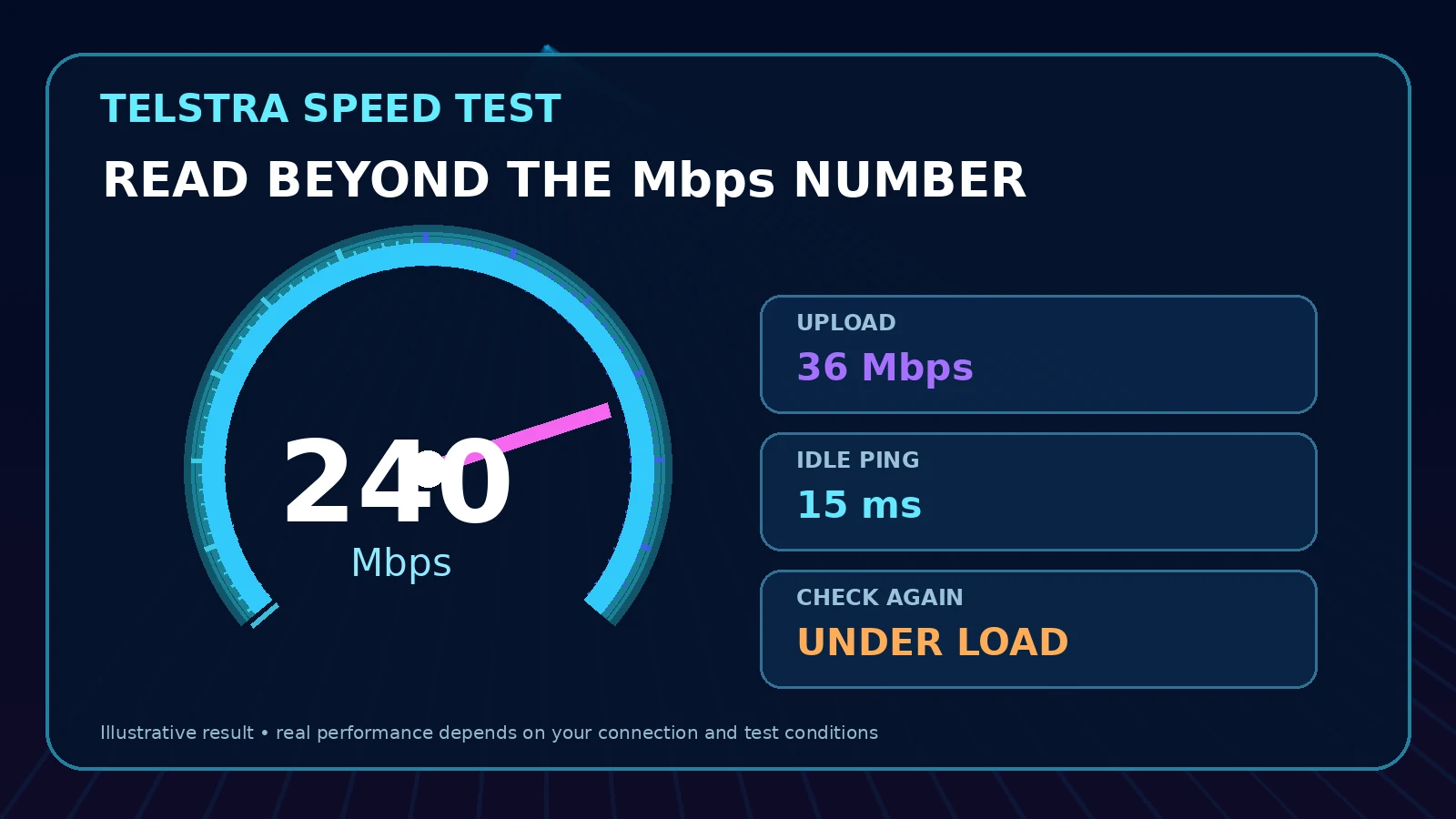
Imagine a Telstra customer runs a test at 5:30 pm. The result looks reassuring: 240 Mbps download, 36 Mbps upload and 15 ms idle ping. The household should be in good shape for many everyday tasks. Yet the upstairs video call freezes, a gaming session shows sudden spikes and a TV buffers whenever the family starts streaming in another room.
That is not proof that the test is inaccurate. The browser may have measured genuine throughput to its chosen test endpoint. But the test was performed on one device, over one route, under one set of conditions. It was not a live audit of every device, every wall, every Wi-Fi channel, every platform or every time of day.
A Wi-Fi indicator with four bars does not certify the upstream connection. Strong Wi-Fi reception and a healthy internet path are different things. A laptop right beside the router can report excellent throughput while a television behind two thick walls struggles. Likewise, a low idle ping does not establish how delay behaves while someone uploads a large file. Traffic can queue inside the home network and increase latency when the connection is busy.
The problem becomes clearer when you ask a better question: Is this a network-wide problem, a local Wi-Fi problem, a problem affecting one device, or an application-specific symptom? A successful test measures performance. A careful diagnosis attempts to locate the failure.
| What you notice | What the speed number may miss | Best next experiment |
|---|---|---|
| Video call freezes upstairs | Weak Wi-Fi, interference or device limits | Retest on the same laptop beside the router, then over Ethernet |
| Gaming lags during downloads | Queuing or latency under load | Compare ping when the house is quiet and when it is busy |
| TV buffers but phones work | TV's Wi-Fi or app-specific problems | Compare playback and tests on the TV and another device |
| All devices go offline together | Modem, service or wider outage | Check modem status and official outage information |
| Speeds are poor after 7 pm | Local contention or other busy-hour factors | Log a consistent series of evening and morning tests |
| One device is always slow | Its Wi-Fi adapter, drivers or processing | Compare with another device in the same position |
Our first article explains the industry-wide shift in more depth: why an impressive speed result is not a complete internet diagnosis. For Telstra customers, that is the reason to keep investigating after the test has finished.
3. Telstra NBN vs 5G vs Mobile: Know What You Are Actually Testing

NBN fixed-line broadband and Telstra 5G Home Internet are not interchangeable technologies. Nor should a 5G speed result on a mobile handset be treated as a guarantee of the speeds a home modem will obtain at the same address. Each service has different physical constraints, plan settings and performance patterns.
NBN fixed-line: the last metre and the last kilometre both matter
A service can involve Fibre to the Premises (FTTP), Fibre to the Node (FTTN), Fibre to the Curb (FTTC), Hybrid Fibre Coaxial (HFC) or other access arrangements. The technology installed at an address can influence attainable speeds, upgrade options and troubleshooting. A degraded copper segment or problematic premises cabling will not be cured by purchasing a more expensive Wi-Fi router. Conversely, a fibre service with strong line performance can still be let down by an overcrowded or poorly positioned home access point.
Start with the actual plan and the service's advertised typical evening speed, not simply the maximum number in a plan name. The Australian Competition and Consumer Commission (ACCC) defines the usual busy evening period as 7 pm–11 pm and publishes guidance on broadband speed claims. ACCC: broadband speed guidance.
Telstra 5G Home Internet: a radio link that changes with conditions
5G can be fast, but the location and orientation of a modem, building materials, distance and line of sight to a serving tower, weather and network demand can influence results. A bedroom cupboard or a low shelf behind a television might not be the best location. Compare tests at different reasonable indoor placements while following Telstra's installation guidance. Do not assume that an outdoor phone speed test proves the indoor home service is faulty.
Telstra specifically identifies signal and network conditions as factors affecting 5G Home Internet. Telstra: 5G Home Internet support.
4G/5G mobile: movement changes the experiment
On a handset, moving between rooms or travelling down a street can change the radio environment. Phones may also switch network technology, spectrum bands or sites. Test in the location where the problem occurs, then compare a nearby location when safe and appropriate. Keep mobile-data and Wi-Fi tests separate so the results describe the intended connection.
| Connection | Important variable | Useful comparison |
|---|---|---|
| NBN FTTP/HFC/FTTN/FTTC | Plan, line/access technology, premises equipment | Wired test vs Wi-Fi; morning vs evening |
| Telstra 5G Home Internet | Indoor radio signal and network load | Same modem in supported positions at consistent times |
| Telstra 4G/5G mobile | Location, signal, device and coverage | Mobile data on vs Wi-Fi on; repeat at the problem location |
| Telstra modem with eligible mobile backup | Whether the primary fixed service is unavailable | Check modem connection state and the applicable support guidance |
The most useful result is not always the highest Mbps figure; it is the repeatable measurement that matches your service and your real complaint.
4. How to Read a Telstra Speed Test: Download, Upload, Ping, Jitter and Health
A modern Telstra speed test should begin with measurements you can use. The NextWatch AI Telstra Speed Test presents core figures and additional connection interpretation. Here is how to read the numbers without over-claiming what they prove.
Download speed (Mbps) describes data arriving at your device. It affects large downloads, web assets and the headroom available for multiple video streams. It is usually the headline number, but it is only part of the story.
Upload speed (Mbps) describes data sent from your device. It matters for sending large files, cloud backups, live broadcasting and video calls. A household can have plenty of download capacity but still experience problems if upstream demand saturates the connection.
Ping or latency (ms) is a measure of response time. Lower values are generally helpful for interactive applications, but different tests measure different endpoints or protocols, so figures should be compared under consistent conditions.
Jitter (ms) is variability in delay. A highly variable response can lead to uneven real-time interactions, especially with other issues present. An isolated jitter figure should not be treated as a definitive diagnosis of gaming or calling problems.
Loaded latency looks at response times while traffic competes for capacity. If latency rises sharply under downloads or uploads, a connection can feel sluggish despite a strong headline speed. Not every online test measures it in exactly the same way.
Packet loss is missing data in transit. It is valuable for diagnosing instability, but a browser-based test should not claim packet-loss certainty unless it genuinely performs an appropriate measurement. Do not read the absence of a packet-loss display as proof that no packets are ever lost.
What does “Telstra Health” mean on NextWatch AI?
The site's Telstra Health percentage is a NextWatch AI-derived indicator based on available performance measurements, not an official Telstra score. In particular, it is not a percentage of network uptime, not a percentage of plan speed and not a guarantee of fault-free service. Its value comes from helping you compare results under similar conditions—not replacing the underlying figures.
A realistic comparison: 240 Mbps on paper
An illustrative test of 240 Mbps down / 36 Mbps up / 15 ms idle ping can represent good capacity for many tasks. But test it again during a cloud backup. If real-time performance collapses, the new observation adds evidence about behaviour under load. If Wi-Fi performs much worse than Ethernet, investigate the wireless side. If both wired and wireless devices struggle, look further up the chain.
A helpful practice is to record device, Wi-Fi/Ethernet, time, connection type, whether a VPN was active, and whether the household was busy. This makes a string of tests useful rather than just a pile of screenshots.
5. Why Telstra Can Slow Down at Night: Busy-Hour Congestion, Plans and Evidence

When an NBN customer says, “My Telstra internet is fast in the morning and slow every night,” the pattern deserves attention. The ACCC uses 7 pm to 11 pm as the typical busy evening window because a greater share of households tends to be online then. Yet the cause could involve Wi-Fi usage inside the home, a streaming or gaming peak, provider capacity, a particular service path or another constraint. A time pattern is a clue, not a verdict.
The ACCC's final Measuring Broadband Australia performance report, published in June 2026, reported that participating fixed-line NBN households averaged 99.4% of their plan download speeds during the busy evening period. This is a population-level observation, not a promise for any individual Telstra service; problematic lines and households can still perform much worse. ACCC: final Measuring Broadband Australia report and ACCC: June 2026 findings.
Run a controlled seven-day comparison
- Use the same device and connection method where possible.
- Test once in a quieter daytime period and again between 7 pm and 11 pm.
- Record download, upload, ping and any available loaded-latency indicators.
- Note whether several devices were active or a major download was underway.
- Repeat over multiple days instead of judging a single dip.
- If feasible, repeat one evening test over Ethernet to narrow down Wi-Fi effects.
Here is how evidence can change the diagnosis:
| Seven-day pattern | What it suggests | What to do next |
|---|---|---|
| Strong Ethernet, weak distant-room Wi-Fi | Local wireless limitation | Work on coverage, placement or interference |
| Weak Ethernet and Wi-Fi only during evening | Busy-hour or shared-path issue is plausible | Collect consistent records; investigate provider/access network |
| One app slow while other services are fine | Application, route or device-specific problem | Reproduce in another app/device before escalating |
| Spikes only when files upload | Upstream load and queueing may matter | Investigate scheduling, traffic management or loaded latency |
| Sudden loss on every device at once | Router, access link or service disruption | Check local equipment and official outage sources |
Do not upgrade your Telstra plan just because one test looks disappointing. A faster plan will not automatically repair weak bedroom Wi-Fi, an unstable device or a service-specific application issue. Build a clear comparison first.
6. Telstra Outages: How to Investigate Without Confusing Reports With Proof

The search “Telstra outage near me” often happens in the most stressful moment: the TV stops, the work call freezes and someone demands to know whether the entire suburb is offline. An accurate answer needs more than a colourful outage map.
Begin by identifying whether the affected service is Telstra NBN/fixed broadband, 5G Home Internet or mobile. Next ask whether the problem affects one device or the entire household. If every device fails simultaneously, broader service trouble becomes more plausible—but not certain. A faulty modem, local power problem or home-network failure can also take everything offline.
Check official status first
For Telstra mobile-network issues, planned disruptions and reported network outages, use the official Telstra outage page. For a service delivered over the nbn network, check the nbn network status checker at the connected address. If the nbn checker finds no area outage, an individual service problem may still exist, so contact your retail provider as necessary. Both official sources have coverage and limitations.
What NextWatch AI's Telstra Outage Detective adds
The Telstra tool includes an Outage Detective that accepts an Australian postcode, suburb or full street address, with a service-type choice for NBN/fixed broadband, 5G Home Internet or mobile. Where live source research is available, the feature helps gather and interpret relevant publicly reported status information and directs users to official verification. A postcode may cover multiple addresses, exchanges or mobile sites; a third-party result cannot verify an individual service fault.
A sensible workflow is:
- Enter the smallest useful location detail you're comfortable sharing.
- Choose the relevant Telstra service type.
- Review the public-source context and its date or uncertainty.
- Open the official Telstra or nbn status page to verify a reported incident.
- Compare the report with the symptoms and timing of your actual connection.
If a live source is unavailable, the tool must not invent an outage or restoration time. “No public outage report found” is not the same as “your line is healthy.” For widespread incident context beyond Telstra, the NextWatch AI Cyber Radar provides a broader public-report intelligence view, while still not proving the cause of any individual service problem.
7. Router Doctor: The Telstra Smart Modem, Wi-Fi Dead Zones and Mobile Backup

In many households, the Wi-Fi network is the most visible part of an internet service—and sometimes the least understood. A customer might receive healthy broadband performance to the modem while the experience falls apart two rooms away. Router placement, walls, interference, overloaded devices, older wireless adapters and firmware issues can all affect the local path.
The modem is not just a box with lights
Telstra's newer Smart Modem 4 offers Wi-Fi 7 capability, and eligible Telstra plans can include mobile network backup and the provider's SmartFix troubleshooting features. These are Telstra's own features; NextWatch AI is an independent companion, not a replacement for Telstra account tools or modem telemetry. Telstra: Smart Modem 4 and Telstra: mobile backup support.
On applicable fixed-broadband configurations, a blue front light can signal that the modem is using mobile backup rather than its primary fixed connection. However, indicator meanings depend on model and service type; blue or green on a dedicated Home Wireless service can mean something else. Always check the correct Telstra modem-lights guide for your equipment before interpreting a colour. A mobile backup connection may also have different speeds or coverage from the primary service.
A power outage is different from a broadband outage. An unpowered modem cannot provide mobile backup merely because a backup service exists; power supply, device eligibility and mobile coverage still matter. Never assume a home phone will work during a blackout without checking your setup and any applicable backup arrangements.
The five-minute local Wi-Fi check
- Test on the struggling device in its usual location.
- Repeat with the same device closer to the router.
- Check whether other devices suffer the same symptom in the same room.
- If available, compare an Ethernet-connected test.
- Look for obvious obstructions or crowded router placement before changing complex settings.
What the AI Router Doctor can and cannot do
NextWatch AI's AI Router Doctor provides guided troubleshooting and can interpret optional user-entered details or a supplied screenshot where supported. It can help organise likely causes, explain readings and recommend the next safe check. It does not sign in to your modem, remotely change your settings, read private network logs automatically or repair a broken physical line. Do not upload passwords, router access keys or other sensitive information in screenshots.
A good assistant asks which evidence would separate the possibilities, not whether it can sound confident about an unseen fault. If the same laptop performs well near the router but poorly upstairs, the next step is a coverage investigation—not an unsupported claim of an NBN-wide outage.
8. Beyond the Meter: NextWatch AI's Four-Step Telstra Diagnosis

Our foundational story, From Dial-Up to AI, calls the shift toward contextual investigation “Speed Test 3.0”—a product philosophy, not an official technical standard. The NextWatch AI Telstra Speed Test is a concrete Telstra-focused implementation of that idea.
Step 1 — Measure the connection
Start with download, upload, ping and the other metrics the browser can reliably collect. Use them as evidence about a particular test path, not as a promise about every platform or every second of the day. Keep conditions as consistent as possible between tests.
Step 2 — Investigate Telstra/NBN outage context
Use Telstra Outage Detective to research location- and service-relevant public reports, including Telstra mobile or nbn status where applicable. Confirm specific network status with official sources. A researched report is not automatic proof that an individual address is affected.
Step 3 — Examine the router and Wi-Fi situation
Use AI Router Doctor to work through local connectivity questions. You can explore symptoms such as weak bedroom reception, sudden drops when multiple devices connect, unexplained modem behaviour or a difference between Ethernet and Wi-Fi. Share optional diagnostic details only if you choose.
Step 4 — Request the Full AI Diagnosis
Once a speed test is available, Full AI Diagnosis can combine the available measurement and optional troubleshooting context into a more detailed interpretation: what the evidence supports, plausible causes, useful next checks and what remains unknown. The outage and router steps are optional rather than mandatory. Results depend on the information actually supplied and the availability of relevant research.
The tool also offers speed history and comparisons saved locally in the browser, with a CSV export option. That makes a series of morning-versus-evening or Ethernet-versus-Wi-Fi tests much more persuasive than one isolated result. Local browser storage is device- and browser-specific; clearing browser data may remove history.
Three illustrative mini-investigations
Case A — “210 Mbps before work, 45 Mbps after dinner.” The numbers establish a pattern worth investigating, but not the cause. Keep the device and network method the same, check whether the household was busy, use Ethernet if possible and research any contemporaneous service reports. Then document the pattern for Telstra.
Case B — “The internet works downstairs but fails upstairs.” Strong near-router performance and weak upper-floor performance point attention towards the wireless path, room layout or affected devices. Router Doctor can guide a structured coverage comparison.
Case C — “NBN fails, but the modem still shows some connectivity.” Inspect the relevant modem indicators and eligibility for mobile backup; compare what the official service status reports. A functioning backup path may hide the fact that the primary connection is unavailable.
The breakthrough is not an AI saying it knows the answer. It is an investigation that steadily reduces uncertainty.
9. What Your Telstra Speed Actually Has to Support: 4K, Gaming, Work and Downloads

A “good” result is defined by what you need to do—not by whether the number looks spectacular in a screenshot. The same household may contain a television, two work laptops, phones, a console, smart cameras and a cloud backup. Different activities stress different aspects of the network.
Streaming and 4K televisions
Streaming playback benefits from adequate sustained download capacity, but the connection to the television itself matters. If a lounge-room TV buffers while a phone beside the modem plays the same material smoothly, test that TV's local connection. The Streaming Speed Test and Netflix Speed Test provide viewing-context estimates; they do not directly diagnose a streaming company's private servers.
Gaming and latency spikes
A large download speed does not guarantee a responsive multiplayer game. Routing, jitter, loaded latency, game server conditions and Wi-Fi instability can all matter. Compare the same game under quiet and busy household conditions and, where possible, over Ethernet. The Steam Games Download Speed Test deals with a related but different question: how long a download might take based on throughput, with caveats for content-delivery networks, disk writes and processing.
Working from home and creator uploads
For work calls, upstream quality and stable delay can be as important as headline download speed. A cloud backup saturating the upload path can degrade a video call. Creators transferring large media files should pay special attention to sustained upload performance. The YouTube Speed Test explores creator and playback contexts, rather than pretending a broadband reading measures YouTube's private infrastructure.
VPNs and special routes
A VPN can alter paths, server distance and transport overhead. If the experience changes only with the VPN connected, make a controlled baseline comparison using the same device and approximate time. The VPN Speed Test helps quantify performance changes; it does not certify VPN security.
| Real-world task | Most informative performance angle | First sensible check |
|---|---|---|
| Multiple 4K streams | Sustained download and TV Wi-Fi stability | Test the actual playback device |
| Competitive gaming | Latency stability and loaded behaviour | Compare busy/quiet periods and Ethernet |
| Video calls | Upload consistency, jitter and loss symptoms | Pause large uploads and retest |
| Large cloud backup | Upload throughput and impact on other traffic | Compare latency during upload |
| Steam download | Download throughput plus server/disk constraints | Compare Mbps with MB/s and disk activity |
| VPN session | Difference against VPN-off baseline | Repeat controlled VPN-on/off trials |
These examples explain why the general evolution-of-speed-testing feature treats experience as part of diagnosis. The goal is a connection that supports real life, not a single perfect score.
10. Your Telstra Troubleshooting Action Plan: The Next 15 Minutes—and the Future

Before paying for an upgrade, replacing a router or making a frustrating support call, perform a short, repeatable investigation. Save the evidence and distinguish what you observed from what you suspect.
The 15-minute diagnostic sequence
- Identify the service: NBN fixed-line, Telstra 5G Home Internet or 4G/5G mobile.
- Run a baseline: Open the NextWatch AI Telstra Speed Test and record download, upload, ping and available stability figures.
- Describe the real symptom: Buffering, slow downloads, device drops, high gaming ping, unstable calls or no connection.
- Narrow the scope: Is one device affected, one room, one application or the entire household?
- Compare locally: Repeat closer to the router and over Ethernet where available.
- Check the modem: Examine its status using the correct Telstra model-specific guide; do not confuse mobile backup with normal fixed-line service.
- Investigate outages: Use Telstra's official outages page or the nbn status checker, plus NextWatch AI's public-source research for context.
- Try targeted guidance: Use the site's AI Router Doctor to organise safe local checks and the Full AI Diagnosis for a contextual interpretation.
- Repeat under the problem conditions: Evening, large uploads, a different room or the particular streaming device.
- Escalate with evidence: Show Telstra reproducible timestamps, readings, service type, wired/Wi-Fi differences, device scope and relevant outage status.
If troubleshooting suggests a service fault, contact Telstra via its official internet support tools. If the issue remains unresolved, review the ACCC's consumer guidance on broadband speeds and available complaints routes, including the Telecommunications Industry Ombudsman as appropriate.
Frequently asked questions about Telstra speed tests
What is a good Telstra speed test result? It depends on your plan, connection type, device and task. Compare repeatable results with your plan's typical evening-speed information and your actual needs rather than assuming one Mbps threshold fits everyone.
Is NextWatch AI the official Telstra speed test? No. NextWatch AI is an independent testing and diagnostic website. Telstra also provides its own testing and support tools through its channels.
Why is my Telstra NBN slow at night? Possible reasons include shared demand, busy household devices, Wi-Fi interference, line conditions or another network/service constraint. Repeat the same wired or consistent wireless test across several evenings before drawing conclusions.
How can I check whether Telstra is down in my area? Check Telstra's outage information. For a service on the nbn access network, enter the connected address in nbn's network-status checker. No report does not guarantee an individual service is healthy.
Is 5G always faster than NBN? No. Actual 5G performance depends on radio and network conditions, while fixed-line NBN performance depends on plan, access type, equipment and service conditions. Compare consistent real-world measurements.
Why is my Telstra internet slow even when the speed test is fast? A test might be measuring a different path or device from the failing application. Check Wi-Fi placement, application issues, loaded latency, upstream activity and possible outages.
Should I test Telstra on Wi-Fi or Ethernet? Both can be informative. Wi-Fi represents ordinary experience, while Ethernet can help isolate wireless limitations on capable equipment. Use the same device and timing where practical.
What does a blue Telstra modem light mean? On some supported fixed-broadband Smart Modem configurations it indicates mobile backup. Meanings vary by modem and connection type, so check Telstra's current model-specific instructions before concluding anything.
Can an AI diagnose a Telstra outage automatically? It can help interpret public reports and your provided observations, but a browser cannot access Telstra's private fault systems or prove the cause of your individual connection problem.
Can a faster plan fix Wi-Fi dead spots? Not necessarily. Dead spots may be caused by distance, building materials, interference or equipment positioning. Establish whether the bottleneck is in the home network before upgrading the broadband plan.
How many tests should I run before contacting support? There is no universally required number. Several controlled tests capturing the actual problem—especially under repeatable conditions—usually provide more useful evidence than one isolated measurement.
The future of Telstra diagnostics is not another prettier dial
Australia's connectivity needs keep evolving. Fibre upgrades, modern Wi-Fi standards, wireless broadband, cloud applications and increasingly connected homes make simple measurement even more useful—but less complete as a diagnosis. Telstra has continued developing its own Smart Modem support and automated connectivity tools. Independent services can add value by helping people compare their own observations, research public status information and formulate a better troubleshooting question.
That future should be judged by accuracy, transparency and practical help, not bold claims of magical AI fault detection. A responsible system tells users what was measured, what was inferred, what it could not inspect and what to check next.
The conclusion: you need more than a Telstra speed number
A speed test remains the right place to begin. But a number on its own cannot see behind every wall, inside every modem or along every app-specific route. The stronger workflow is to measure the connection, investigate the conditions, check credible outage evidence, troubleshoot the home network and explain the remaining possibilities.
That is the practical promise NextWatch AI is pursuing for Telstra customers. For the wider story of why this matters across the internet, read Speed Test: From Dial-Up to AI — Why One Number No Longer Explains the Internet.
The question used to be, “How fast is my Telstra internet?” Now the valuable follow-up is, “Why is it performing this way—and what should I check next?”
Run the free NextWatch AI Telstra Speed Test and explore your connection diagnosis.
Don't stop at a number. Investigate your Telstra connection.
Run a connection test, examine outage context, explore Router Doctor and turn the results into a practical next step.
Run the Free Telstra Speed Test ↗