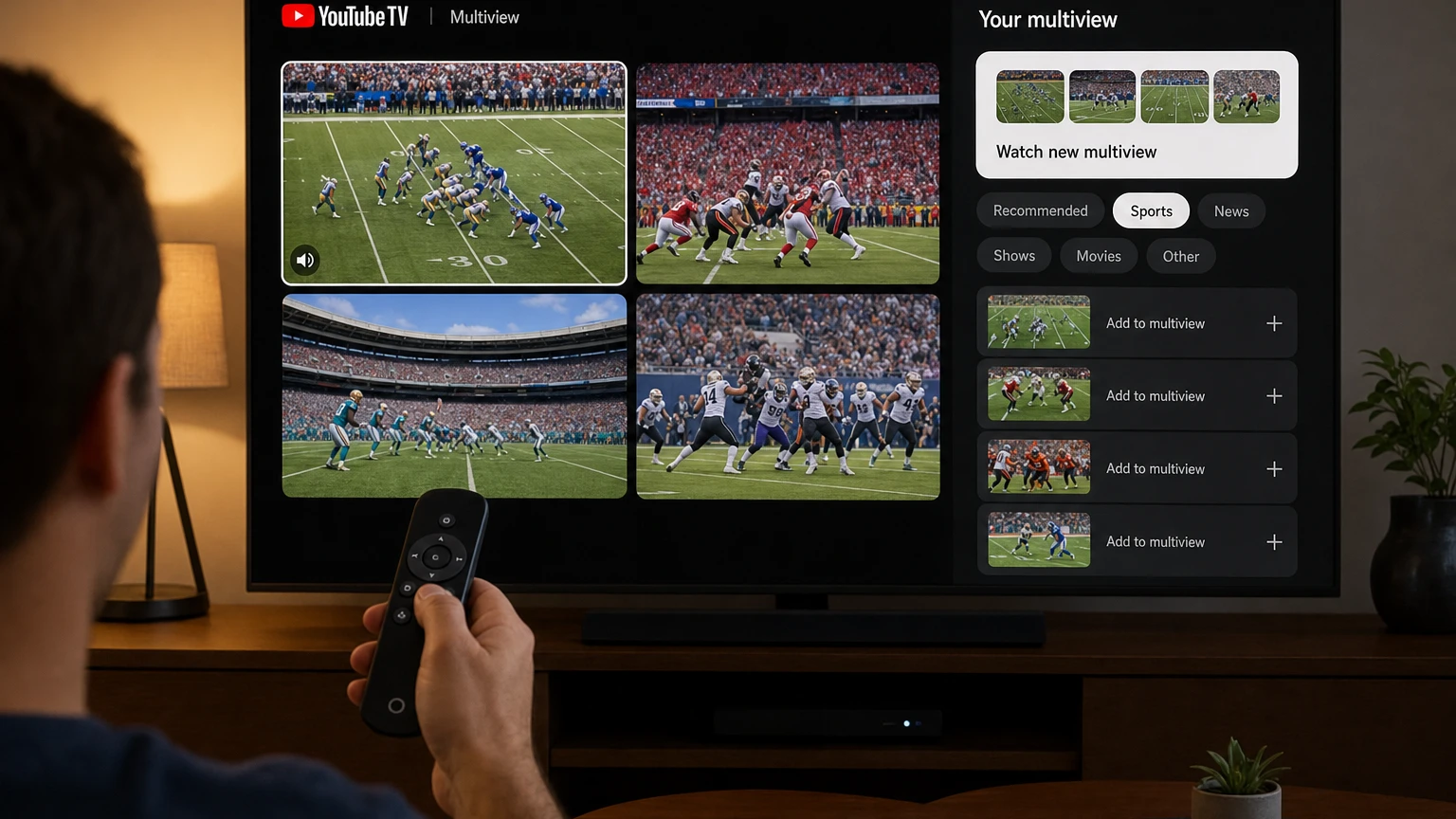
Quick answer: YouTube TV Multiview lets you combine up to four eligible live programs on one screen. Start an eligible live channel, open the player controls, select Multiview, and add the other available streams you want. You can build and control a grid in the YouTube TV apps for supported TVs, streaming devices, Android devices, iPhones, and iPads. Multiview is not available in a web browser or through AirPlay.
The word eligible matters. A missing game or channel does not always mean YouTube TV Multiview is broken. The program may be on demand instead of live, excluded by content rules, unavailable under your package, blocked in your location, or subject to an NFL-specific restriction. Older hardware can also receive fewer customization choices.
This guide walks through the complete process: building a custom game grid, switching audio, opening one tile full-screen, checking eligibility, and diagnosing why the Multiview option or a specific channel is missing.
What YouTube TV Multiview can do in 2026
YouTube TV introduced Multiview as a collection of preassembled live grids. On April 28, 2026, TeamYouTube announced the broader rollout of full Multiview customization, expanding the builder beyond recommended combinations and a limited group of sports channels.
The current experience supports:
- Two, three, or four eligible live programs in one grid.
- Custom combinations selected from the content shown in the builder.
- Live sports, news, shows, movies, and other eligible live programming.
- Personalized or premade combinations on the YouTube TV Home page.
- Audio and caption switching between tiles.
- Opening an active tile full-screen and then returning to the grid.
- Eligible add-on content when the account has the necessary subscription.
- Building and watching Multiview on supported mobile devices as well as living-room devices.
There are also clear limits:
- No browser support: You cannot use Multiview at the YouTube TV website on a desktop or laptop.
- No AirPlay support: Opening YouTube TV on an iPhone or iPad and sending it to a television through AirPlay does not enable Multiview.
- Live programming only: DVR recordings and video-on-demand programs cannot be added to a custom grid.
- No universal channel guarantee: Only the programs displayed by the builder can be added at that moment.
- Package rules still apply: Premium channels, sports packages, and other add-ons require the corresponding subscription.
- Some programming is excluded: YouTube TV says select family-friendly content is not currently eligible.
- Older hardware may receive a reduced experience: Devices mostly dating from before 2018 can have fewer choices or lower picture quality.
How YouTube TV Multiview works
Traditional split-screen viewing can require a device to decode several video streams simultaneously. YouTube TV takes a different approach: its servers combine the selected programs and deliver the finished grid as one composite live feed to your device.
That design helps Multiview work across a broader range of televisions and streaming players. It does not, however, guarantee identical performance on every model. The app interface, decoding support, memory, operating system, and age of the device can still affect picture quality and access to the full builder.
The server-generated design also explains several controls:
- Only one tile supplies audio at a time.
- YouTube TV manages the overall grid layout.
- Selecting one tile changes the active audio source.
- Opening a tile full-screen temporarily leaves the composite view.
- Returning with the Back control restores the grid session.
The device receives one composite video feed, but YouTube TV does not document this architecture as a promise about how account-level simultaneous-stream limits are counted. Do not assume a four-tile grid automatically changes your plan's concurrency rules.
How to build a Multiview on a TV or streaming device
Use these steps in the dedicated YouTube TV app on a smart TV, Roku, Fire TV, Apple TV, Google TV, Chromecast with Google TV, supported game console, or another compatible living-room device:
- Open the YouTube TV app and start playing one of the live programs you want in the grid.
- Press the Down button on the remote to reveal the player controls.
- Select Multiview.
- Choose the content you want to add from the panel at the bottom of the screen.
- Continue adding available programs until the grid contains the combination you want, up to four tiles.
Depending on the app version and account, programs may be grouped under filters such as recommended content, sports, news, shows, movies, or other live programming. Labels and placement can change, so look for the Multiview icon rather than relying on a specific row position.
Choose the right starting channel
The fastest method is to begin with the program you care about most. Think of it as the grid's anchor. If the Multiview control does not appear from that program, test another eligible live channel before beginning broad troubleshooting. This quickly reveals whether the problem is tied to one broadcast or to the device and app.
For a football afternoon, for example, start the most important game, open Multiview, and then add overlapping games from the builder. For a breaking-news grid, begin with one national news network and add the other available live feeds.
How to build a custom Multiview on Android, iPhone, or iPad
The current YouTube TV mobile help instructions support building a grid directly in the Android and iOS apps:
- Start an eligible live program.
- Tap the video to display the player controls.
- Tap Multiview.
- Select a content category at the bottom.
- Choose the other live programs you want to add.
If your phone or tablet shows premade grids but no builder, update the YouTube TV app and test more than one eligible live program. Feature availability can also vary with the content, subscription, location, and device.
You can watch Multiview directly in the mobile app or use supported casting methods where available. Do not substitute AirPlay when troubleshooting; YouTube TV explicitly excludes AirPlay from Multiview support.
How to switch audio, captions, and full-screen video
A Multiview grid can display several programs, but it plays audio from only one tile at a time. The active-audio indicator identifies the stream you are hearing.
On a television
- Use the remote's directional pad to highlight the tile you want to hear.
- Confirm that the active-audio indicator moves to that tile.
- To open it full-screen, select the active tile and press the remote's Select, OK, or center button.
- Press Back to return to Multiview.
On a phone or tablet
- Tap the tile you want to hear.
- Verify that the active-audio icon appears on it.
- Tap the full-screen control to expand that program.
- Use the exit-full-screen control to restore the grid.
Captions follow the active selection. If captions appear to belong to the wrong game or program, first confirm that you have selected the intended tile. If captions remain unavailable, the individual broadcast may not be supplying them correctly. Our separate guide to fixing YouTube captions that are not working covers broader device and app checks.
A better way to design your custom game grid
Adding every available game is not always the most useful setup. A four-tile grid makes each program smaller, so build around attention rather than maximum capacity.
| Viewing situation | Recommended grid | Why it works |
|---|---|---|
| One must-watch game plus alternatives | Main game and one or two secondary games | Larger tiles make the primary action easier to follow. |
| Several simultaneous close games | Four-game grid | Best for monitoring scores and identifying which game deserves full-screen attention. |
| Fantasy football afternoon | Games containing your most important players | Reduces noise from games that have little effect on your lineup. |
| News during a major event | Two or three contrasting live networks | Leaves enough screen space for tickers and lower-third text. |
| Games with staggered start times | Begin with two, then rebuild or add programs as windows overlap | Avoids filling the grid with studio coverage or completed events. |
Use an anchor, monitor, and promotion system
A practical grid has three roles:
- Anchor: The program receiving most of your attention and usually the active audio.
- Monitors: Secondary tiles you scan for scoring opportunities, close finishes, or breaking news.
- Promotion: When a monitor becomes more important, switch its audio or open it full-screen.
This system is faster than repeatedly leaving the grid and channel surfing. It also prevents a common mistake: changing audio every few seconds and missing the commentary that provides context for the primary game.
YouTube TV Multiview not working: a symptom-by-symptom guide
Start with the exact symptom. Randomly reinstalling apps will not fix a package restriction, while checking subscriptions will not repair a frozen application.
| Symptom | Most likely causes | Best first action |
|---|---|---|
| No Multiview button anywhere | Browser or AirPlay use, outdated app, incompatible device, or no eligible live content | Open the native YouTube TV app on an updated TV, streaming device, phone, or tablet and test a major live event. |
| Multiview appears, but a channel is missing | Program is not live, add-on is absent, content is excluded, or rights restrictions apply | Open the channel by itself, confirm it is live and playable, and check the account's membership. |
| Only a few combinations are available | Older or lower-memory hardware is receiving a reduced builder | Check Device Capabilities and compare the same account on newer hardware. |
| NFL RedZone is missing | The required NFL subscriptions are not attached to the account, or the attempted combination violates NFL limits | Verify NFL Sunday Ticket and RedZone access, then build from an eligible NFL game. |
| A local game is missing | Playback-area problem, local affiliate availability, or a sports blackout | Verify the current playback area and test the local station outside Multiview. |
| The wrong program has audio | A different tile is active | Highlight or tap the desired tile and look for the active-audio indicator. |
| Grid buffers or looks soft | Network instability, older hardware, app problems, or reduced picture quality on the device | Use the default broadcast delay, restart the device and router, and install updates. |
| Stats or key plays are unavailable | Other interactive views are restricted while Multiview is active | Use a second device for stats, key plays, or fantasy information. |
1. Make sure you are not using a browser or AirPlay
This is the quickest eligibility check. Multiview is unavailable at the YouTube TV website even if the computer can play every channel normally. It is also unavailable through AirPlay.
Move to the native YouTube TV app on a supported TV, streaming player, Android device, iPhone, or iPad. If you want the grid on a television, use the television app or a supported streaming box instead of mirroring a browser window.
2. Confirm that the program is live
The custom builder accepts live content. A saved DVR recording, restart-from-beginning recording, condensed replay, or on-demand episode may look like the live program in search results but remain ineligible for the grid.
Open the program information and confirm that you are selecting the live airing. If necessary, navigate through the Live guide rather than the Library.
3. Test the desired channel by itself
Before blaming Multiview, open the missing channel as a normal full-screen stream. If it will not play alone, the grid cannot solve the underlying access problem.
A standalone playback failure points toward:
- A missing subscription or add-on.
- A local-channel location error.
- A sports blackout or another rights restriction.
- A temporary channel or app outage.
- A home-area or current-playback-area problem.
If the channel plays normally but is absent from the builder, it is probably not eligible for that combination or session.
4. Check the subscription attached to the profile
Custom Multiview does not unlock channels. You must have access to every stream you add, including premium networks and sports add-ons.
Open the account's Membership settings and verify that the required plan appears. If you are looking for ESPN package content, our guide to finding ESPN Unlimited games and feeds on YouTube TV explains where alternate feeds and package-specific content can appear.
5. Understand the NFL Sunday Ticket and RedZone exception
Cross-package combinations may be supported when the content is eligible, but NFL programming has additional restrictions. YouTube TV's current help guidance says:
- NFL RedZone will not appear unless the account has both NFL Sunday Ticket and NFL RedZone access for the relevant Multiview experience.
- NFL Sunday Ticket Multiview content, including RedZone purchased with Sunday Ticket, can be combined with other NFL games rather than general YouTube TV channels.
- The builder remains the final source of truth for which games can be combined at that time.
If RedZone is missing, begin from an out-of-market Sunday Ticket game, open Multiview, and look for RedZone among the eligible NFL choices. If it remains absent, verify the subscription before restarting hardware.
6. Check your playback area when local channels are missing
YouTube TV determines local programming from your location. On a television or streaming player, open Settings, select Location, and review both the home area and current playback area.
If the current area is wrong, YouTube TV may ask you to verify it with a phone. Once corrected, test the local station in full-screen mode and then reopen the builder. Location verification cannot override a legitimate league or network blackout.
7. Check whether the device offers the full Multiview experience
On supported versions of the YouTube TV app, navigate to Settings > Support > Device Capabilities. Look for the full Multiview capability. Google has described this device-checking screen as a gradual rollout, so it may not appear on every device.
If the same account offers more choices on a newer television or streaming box, the original hardware is the likely bottleneck. YouTube TV specifically warns that some devices mostly manufactured before 2018 can receive fewer customization options or reduced quality.
8. Update, restart, and reinstall in the right order
For an app-level failure, use this order:
- Close and reopen the YouTube TV app.
- Install the newest available YouTube TV app update.
- Install operating-system or firmware updates for the device.
- Turn the device completely off, wait about 30 seconds, and restart it.
- Unplug the router, wait about 30 seconds, and reconnect it.
- If the problem remains, uninstall and reinstall YouTube TV, then sign in again.
Testing after every step helps identify what fixed the problem and avoids unnecessary account changes.
9. Stabilize buffering before reducing live delay
YouTube TV offers a decreased broadcast-delay setting intended to reduce live spoilers. The trade-off is a smaller playback buffer, which can increase interruptions on an unstable connection.
If Multiview is freezing, open the player's additional options and set Broadcast Delay to Default. Then restart the router, reduce Wi-Fi interference, and test the grid again. Switch to decreased delay only after playback is stable.
Because the grid is composed on YouTube's servers, your device is not independently downloading and assembling four normal channel players. Your internet connection must still deliver the resulting live video consistently.
Why a custom grid may change during the day
Multiview availability is based on what is live and eligible now, not a permanent list of channels. A combination that works at noon may disappear later because a game ended, a studio program replaced it, rights changed between broadcasts, or the next program is not eligible.
Program start and end times can also create two-, three-, or four-tile options at different points in the same sports window. Reopen the builder when a new group of games begins rather than assuming an earlier grid will automatically gain every new event.
YouTube TV's current help documentation explains how to build a session but does not document a permanent save-preset control. If your app does not show a save option, plan to rebuild the combination for the next viewing window rather than treating the missing control as a malfunction.
A five-minute pregame Multiview checklist
- Update the app early: Do not wait until kickoff to install an app or device update.
- Verify the playback area: Confirm local channels appear in the Live guide.
- Test add-ons: Open Sunday Ticket, RedZone, or another premium stream by itself.
- Pick the anchor game: Start the most important live program and build outward.
- Use default delay first: Prioritize stable playback before trying to reduce spoilers.
- Check audio: Move between tiles and confirm that the active indicator follows.
- Prepare a second screen: Keep a phone or tablet available for stats, key plays, and fantasy tools that are not shown over the grid.
The bottom line
YouTube TV Multiview is now a genuine custom live-TV builder rather than only a shelf of premade sports combinations. On supported TV, streaming, Android, and iOS apps, you can begin with an eligible live program, add up to three more, and switch audio or full-screen focus without repeatedly changing channels.
When YouTube TV Multiview is not working, diagnose eligibility before resetting everything. Confirm that you are using the native app, the content is live, every channel belongs to your subscription, the playback area is correct, and the device supports the full experience. For most missing-grid problems, one of those checks reveals the cause faster than a reinstall.
Make YouTube smarter with NextWatch AI
Use AI search, smarter discovery, playback tools and speed testing directly in your browser.
Add NextWatch AI to Chrome ↗