
Steam Download: Why Is It So Slow? Fix Download Speeds, MB/s, Regions and Game Wait Times
The complete guide to Steam download speed: why an 800 Mbps connection may not deliver a constant 100 MB/s in Steam, how game updates and SSDs change the picture, and how NextWatch AI helps turn download speed into a realistic game-download estimate.
Want to estimate your game download before you wait hours? Run the independent NextWatch AI Steam Games Download Speed Test, choose a game or enter your actual Steam download size, then return to understand what your numbers mean.
A game sits at 37%. Steam displays a low download rate. Your ISP advertises hundreds of megabits per second. The RGB PC is powerful, the router has plenty of signal bars, and yet your download refuses to behave like the number on your broadband plan. It is the modern gaming equivalent of watching a dial-up image slowly appear, except the files are now tens or hundreds of gigabytes.
The most useful question is not simply “How fast is my internet?” It is “Which part of the Steam download-and-install process is limiting me right now?” Download servers, network routes, Wi-Fi, local storage, compression, CPU work and client settings can all contribute. None can be diagnosed conclusively from one browser speed test.
Our foundational feature, Speed Test: From Dial-Up to AI — Why One Number No Longer Explains the Internet, explains why download Mbps is essential but no longer a whole-network diagnosis. Steam is one of the clearest examples: the internet transfer is only one stage of getting a game ready to play.
1. Why Is My Steam Download So Slow? The 100 GB Frustration
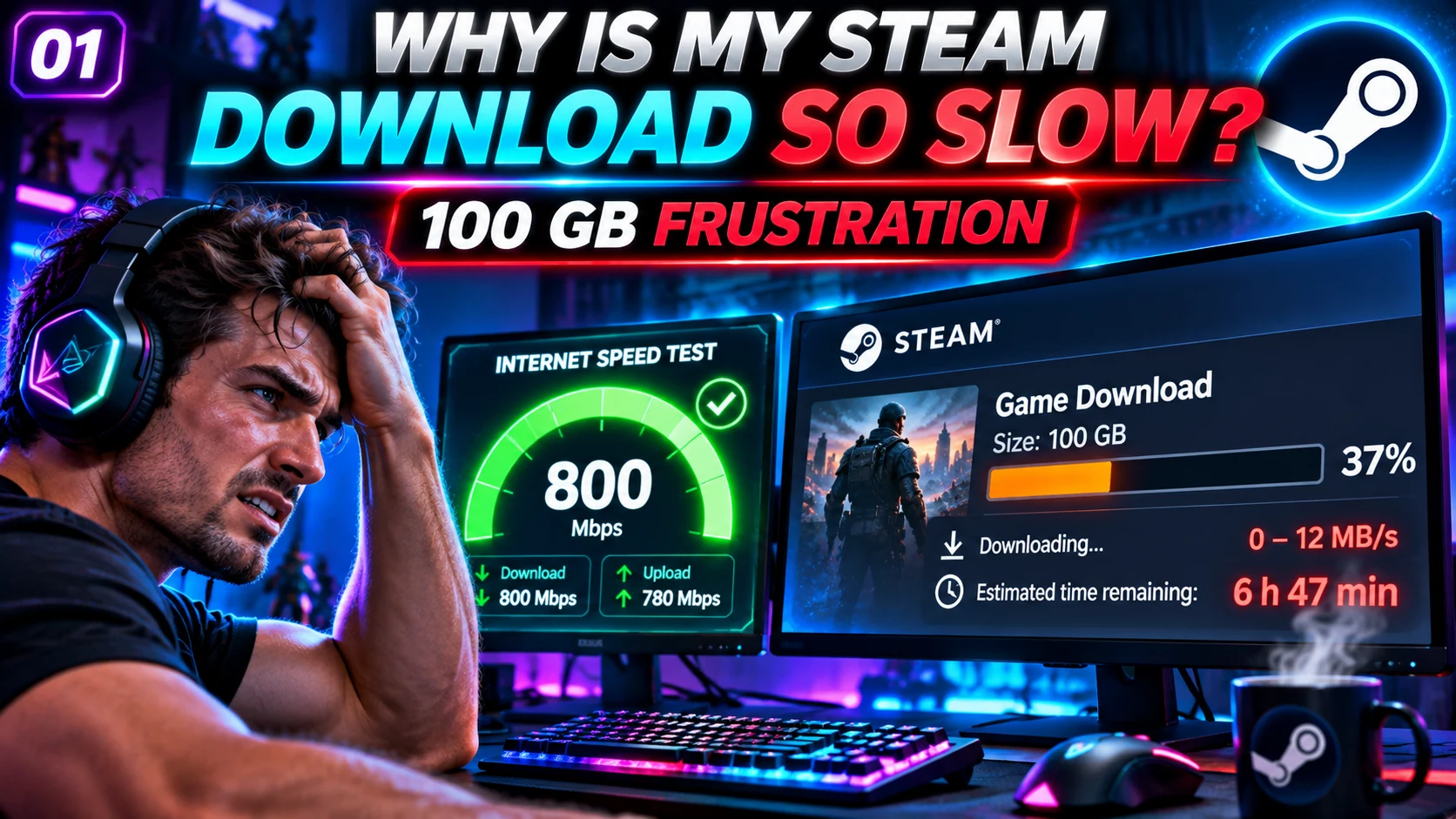
Picture a 100 GB game downloading on a connection that measures 800 Mbps. Simple maths suggests a theoretical transfer time of about 16 minutes 40 seconds if all 100 GB were actually transferred at a constant 800 Mbps. That sounds like an easy download while you make coffee. Instead, the Steam client might alternate between 65 MB/s, 20 MB/s and 0 MB/s; the progress indicator may change from downloading to processing; and the playable game could take considerably longer.
The gap does not automatically mean that your ISP is lying or Steam has broken. First establish which number and which stage you are observing. An 800 Mbps browser baseline and a Steam transfer average to a particular content server are different measurements of different paths. Disk installation and file verification are additional work.
Common Steam complaints fall into several categories:
- Slow from the first second: check units, configured download limits, Wi-Fi signal, region and the measured connection baseline.
- Fast initially, then slower: investigate server-route conditions, changing local load and storage or CPU processing.
- Drops to zero intermittently: inspect Steam's disk-activity display and Task Manager before blaming the internet.
- One particular game or update seems stuck: check available storage, patching work, installation state and whether the issue affects other downloads.
- Everything in the house is slow: broaden the investigation to your router, ISP, outages or competing household traffic.
One crucial distinction: a download speed is not an installation speed. For some games a smaller compressed download can trigger substantial local file operations, especially during patches. Waiting on those operations can be frustrating even when no more internet data needs to arrive at that moment.
The correct first move is to observe Steam's network and disk activity for a minute or two, not to perform ten unrelated “fixes” at once. Preserve the evidence: actual rate, stage, time, selected region, game, free disk space and whether the PC is on Wi-Fi or Ethernet.
Bottom line: one slow download is a symptom. The cause may be somewhere between Valve's delivery network and your own storage drive.
2. Mbps vs MB/s: The Eightfold Difference Every Steam Gamer Should Know
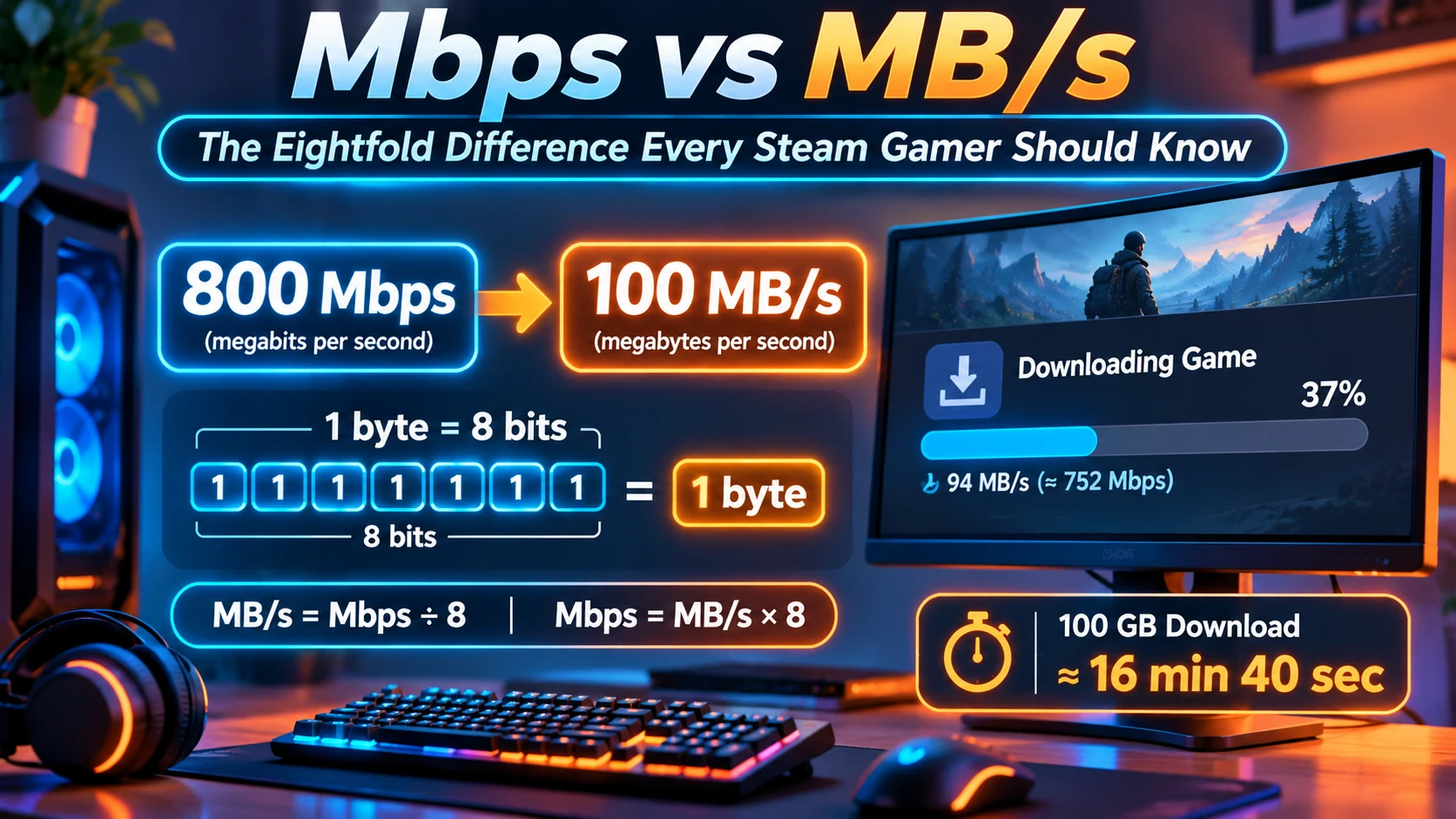
Perhaps the most viral misconception in PC downloads is also the easiest to fix. Mbps means megabits per second; MB/s means megabytes per second. One byte contains eight bits, so the basic conversion is:
MB/s = Mbps ÷ 8 and Mbps = MB/s × 8.
If your broadband connection measures 800 Mbps, its theoretical data-rate ceiling is 100 MB/s, not 800 MB/s. A reading of 94 MB/s can be extremely good on that connection; it is not proof that Steam has reduced your speed to one-eighth of what you pay for.
| Broadband baseline | Theoretical maximum in MB/s | Ideal time for 100 GB* |
|---|---|---|
| 25 Mbps | 3.125 MB/s | 8 h 53 min |
| 50 Mbps | 6.25 MB/s | 4 h 27 min |
| 100 Mbps | 12.5 MB/s | 2 h 13 min |
| 250 Mbps | 31.25 MB/s | 53 min 20 sec |
| 500 Mbps | 62.5 MB/s | 26 min 40 sec |
| 800 Mbps | 100 MB/s | 16 min 40 sec |
| 1,000 Mbps | 125 MB/s | 13 min 20 sec |
Illustrative decimal 100 GB transfer, 8 bits per byte, constant full rate, excluding overhead, server limits, compressed-transfer differences and installation work. These are theoretical floors, not promises of real Steam completion time.
There is a second possible confusion: computing systems may also display MiB/s, where one mebibyte equals 1,048,576 bytes rather than one million. Not every interface reports units in the same way. For practical comparisons, verify what your speed test and Steam client actually display before drawing a conclusion from two numbers.
Why a good conversion still cannot predict the finish time perfectly
A game may have a store-listed installed size of 100 GB yet require a different amount of actual compressed network transfer. The Steam client can also read and rewrite existing files as it applies an update. Network rates fluctuate, and installation can keep working after transfer activity drops. That is why an ETA should be interpreted as an estimate under assumptions.
NextWatch AI's Steam tool converts your measured baseline into game-download scenarios. For the strongest estimate, enter the actual amount Steam says remains to download, rather than assuming the store's disk requirement equals bytes over the wire.
3. Download Region, Steam Content Servers and the CDN Question
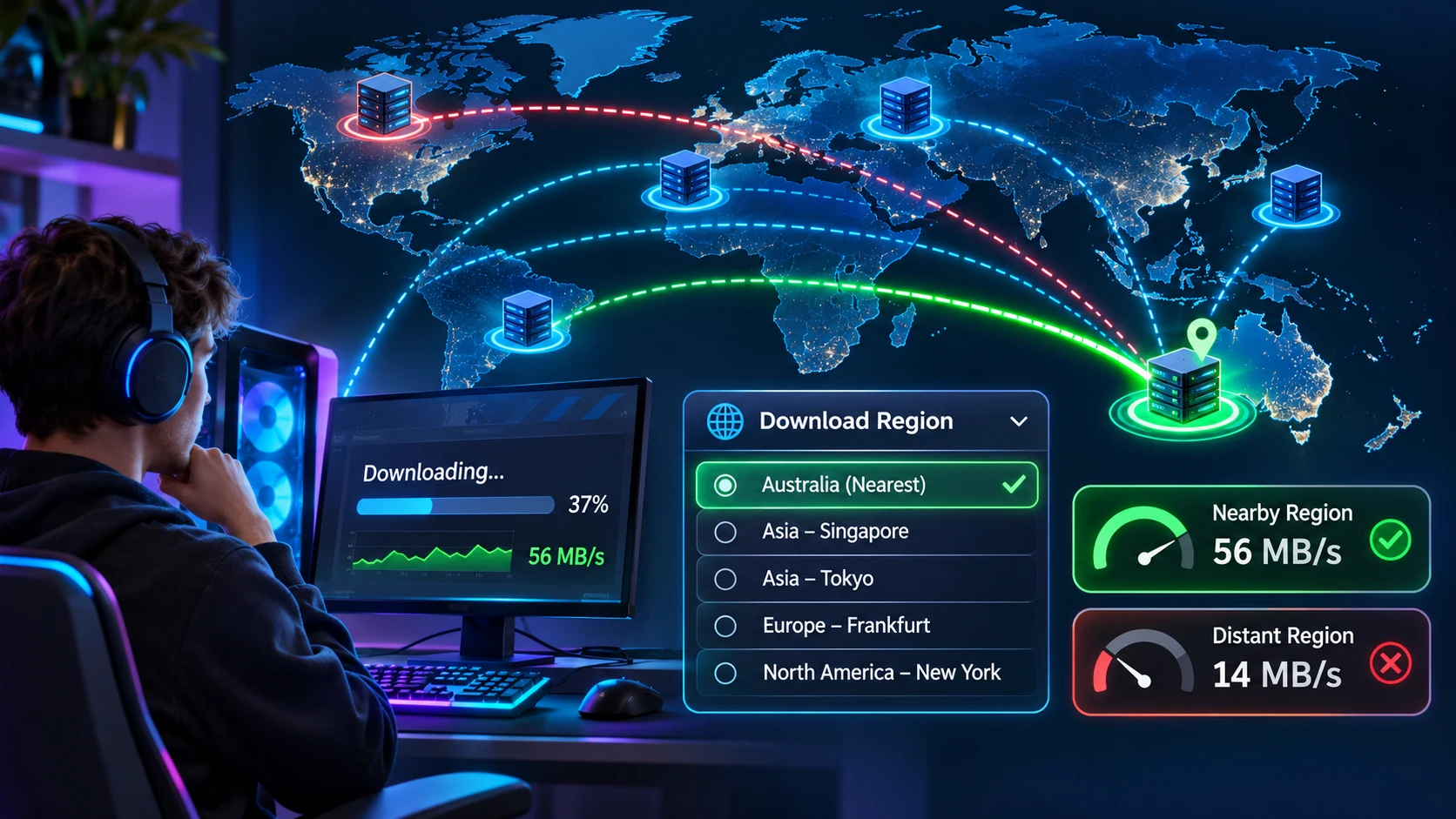
The next variable sits outside your gaming PC. Steam distributes game content using geographically distributed content servers. The client chooses a download region, but the closest location is not always the fastest in every moment. Load, routes between networks, ISP peering, congestion and the behaviour of the delivery system can make two nearby regions perform differently.
Valve's own Slow Downloads and Connection to Content Servers guidance recommends confirming your download region in Steam → Settings → Downloads, starting with your local or nearest region and testing other nearby regions if needed.
A careful region experiment
- Record your current Steam rate during a sustained download and note the time.
- Go to Steam → Settings → Downloads → Download Region.
- Select one sensible nearby alternative; apply the change and let the client settle.
- Compare the same game or similar download conditions for long enough to observe a pattern.
- Return to the best consistently performing region, not merely the one with the highest momentary spike.
For an Australian user, a sensible test may mean comparing available Australian regions or a nearby alternative rather than jumping instantly to a continent on the other side of the world. For a player elsewhere, apply the same principle to the locations Steam offers. A distant region can be excellent in one case and poor in another; do not claim a universal “fastest Steam server.”
The official Steam download statistics page can add broad context on Steam's content delivery, but public aggregate figures are not a measurement of your particular route at this second.
If a browser speed test is fast and Steam is slow only for one region, the contrast is a reason to investigate routing and Steam delivery—not proof that your home network has no problems. Conversely, a low browser baseline near the router suggests investigating the local connection first.
The question has shifted from “Which server is nearest?” to “Which content path works best for this connection under these conditions?”
4. When the SSD, Hard Drive or CPU Is the Real Bottleneck
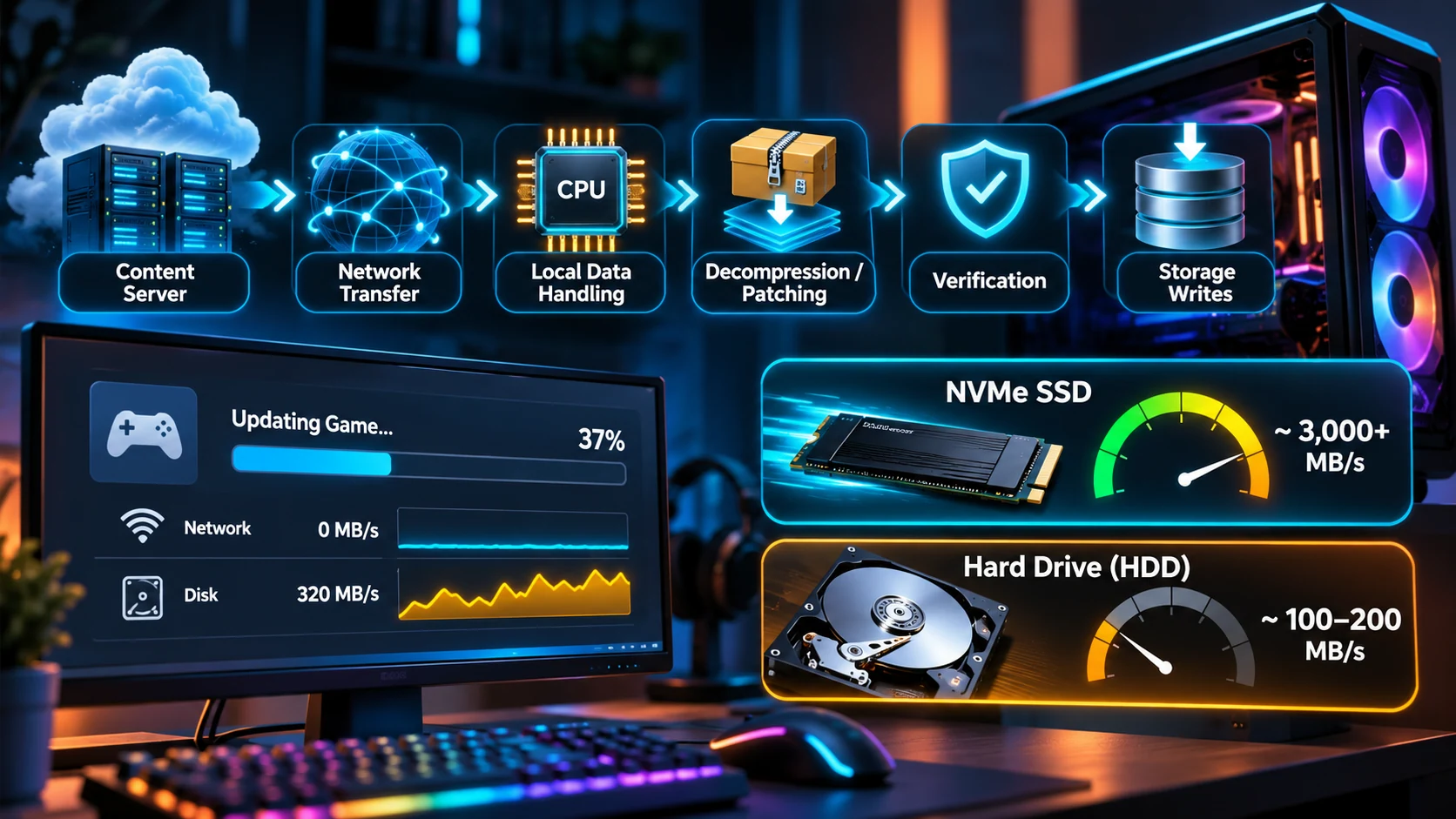
A Steam download involves more than copying bytes over the internet. Data can be compressed for delivery and may require local unpacking, verification and writing. Game updates can modify existing content, which sometimes creates more local work than the apparent download size suggests.
Valve's SteamPipe documentation describes a content system designed for efficient installs and patching; updates reuse unchanged chunks where possible. This is good engineering, but it does not abolish the physical work performed on your PC.
A simplified pipeline looks like this:
Content server → network transfer → local data handling → decompression/patching → verification → storage writes → game ready.
Not every game follows an identical linear sequence, and stages can overlap. Nevertheless, the chain explains a familiar observation: Steam shows 0 MB/s network while disk activity continues. Your computer may still be applying data to the installation. It is possible for the network to be idle while the CPU and storage are busy.
What to look for on Windows
Open Task Manager, inspect Performance → Disk, and observe CPU and memory utilisation while Steam shows a slowdown. Check free space on the destination drive and ensure the drive is healthy. A mechanical HDD, a nearly full drive, thermal throttling, other simultaneous transfers or antivirus scanning can affect work differently. An NVMe SSD can be advantageous for many installations, but even a fast SSD does not guarantee Valve CDN traffic will match your ISP's advertised ceiling.
| Observation | Stronger possibility | Next diagnostic step |
|---|---|---|
| Steam network 0 MB/s, disk busy | Local unpacking, patching or verification | Allow work to proceed; watch storage and CPU |
| Steam network low, disk mostly idle | Region, network route, rate limit, Wi-Fi or server | Compare region and independent baseline |
| Download fast, “installing” stays slow | Storage, CPU, patch design or security scanning | Check storage health, free space and resource load |
| Entire PC becomes unresponsive | High disk usage, memory pressure or other system load | Stop heavy background tasks; inspect Task Manager |
| Only one title fails repeatedly | Title-specific files, update or library problem | Review Steam's verify / repair guidance |
Do not disable security protection or delete game folders just because a forum comment claims it doubles speeds. Prefer the least disruptive, evidence-based next step first. Valve's Update & Installation Issues guide explains library repair, file verification, region changes and other supported troubleshooting options.
5. How to Fix Slow Steam Downloads: A Practical, Low-Risk Sequence
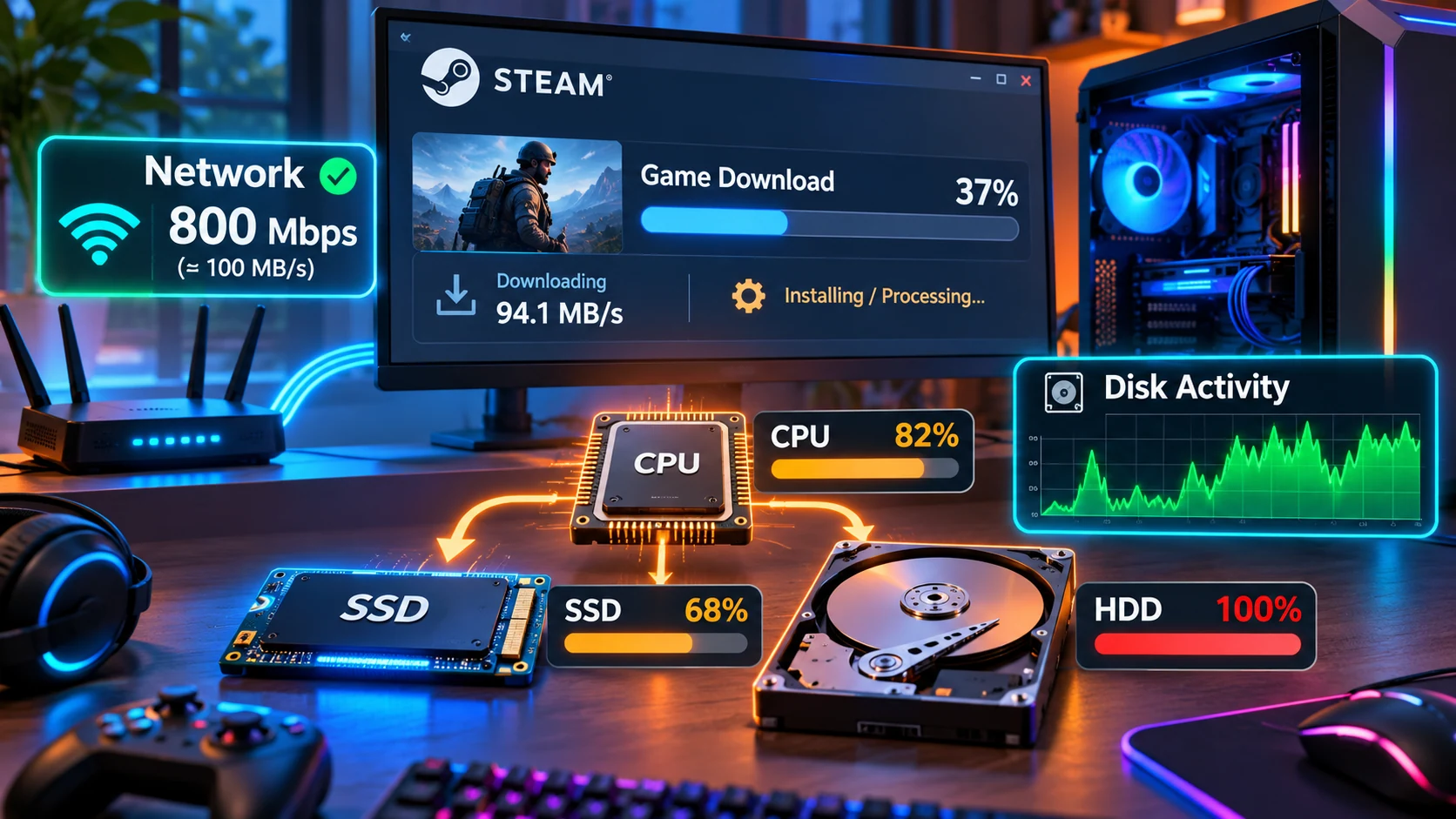
There is no single trick that reliably turns every slow Steam download into gigabit speed. What works is an ordered test in which you change one variable, observe the result and avoid destroying useful evidence.
Step 1 — Check your internet baseline
Run NextWatch AI's independent Steam download speed test on the same PC used for Steam. Note download Mbps, upload, ping and test conditions. This baseline does not fetch a game from Valve's servers; it helps separate a generally limited connection from a more Steam-specific symptom.
Step 2 — Translate the units
Convert your Mbps into MB/s before deciding anything is broken. On a 100 Mbps line, a Steam reading around 10–12 MB/s may be healthy; a demand for “100 MB/s” would require a much faster line.
Step 3 — Confirm Steam's download settings
Check Steam → Settings → Downloads for any configured speed limit, active download schedule, region and other restrictions. Valve documents download bandwidth limits in its own support centre. If you use a limit intentionally to keep voice calls or other devices responsive, removing it has a household trade-off.
Step 4 — Compare one nearby download region
Use Valve's region instructions and compare sustained performance. Avoid hopping through a dozen regions in five minutes: different stages of an install will make comparisons misleading.
Step 5 — Check the disk before troubleshooting the router
If download pauses line up with high disk or CPU use, allow time for unpacking and consider whether your storage setup is the actual restriction. Check space, free resources and the drive's health. Steam's graph is a clue; it is not a full hardware diagnostic.
Step 6 — Compare Ethernet and Wi-Fi if possible
A wired test removes the radio link as a variable. If Ethernet is consistently stronger while the rest of the setup is unchanged, investigate wireless coverage, interference, router position and competing devices before upgrading the ISP plan.
Step 7 — Limit competing traffic
Large cloud backups, other launchers, streaming and household downloads can share your available connection. Pause them briefly if appropriate and retest; do not assume one device owns the entire line.
Step 8 — Try Steam's cache or library repair only when appropriate
For downloads or installs that repeatedly fail, Valve documents Clear Download Cache and Repair Library Folder procedures. Clearing the cache does not remove installed games, but you may have to sign in again. This is a troubleshooting action, not a guaranteed universal speed increase.
Step 9 — Recheck and escalate with evidence
Record the before/after rates and conditions. If the whole connection is also unstable, investigate router and provider issues. If only Steam behaves badly and other evidence is healthy, contact Steam Support with the specific game, region, time and reproducible symptoms.
Do one change at a time. Randomly resetting the router, changing DNS, clearing caches, switching regions and reinstalling Steam simultaneously makes it impossible to know what actually helped.
6. NextWatch AI's Steam Games Download Speed Test: From Mbps to Game ETA

The NextWatch AI Steam Games Download Speed Test is built for a particular gamer question: “Given my connection, how long could this game take to download—and what might hold it back?” It is an independent browser measurement plus interpretation and estimation workflow. It is not an official Steam or Valve server test and cannot read private Steam client transfer or storage telemetry.
The production tool includes several complementary elements:
Independent network speed measurement. Check an objective baseline before blaming a particular game service. A good baseline narrows the investigation, but never guarantees performance to every Steam delivery endpoint.
Download-time estimator. Choose a game-size scenario or enter a custom size to translate a connection rate into an approximate wait time. The calculator is a planning aid, not a commitment by Valve or your ISP.
Mbps / MB/s translation. The page explicitly explains the eightfold conversion so users can compare their plan's speed language with Steam's transfer language.
Region-fit guidance. Consider whether Steam's selected region makes sense and what comparison to make. A browser cannot directly benchmark every Steam content server or conclusively identify the fastest one.
Storage and processing explanations. The tool reminds gamers that HDD, SSD, CPU and decompression work affect real waiting time after—and sometimes during—network delivery. It does not pretend to read local disk-health diagnostics from the browser.
Game presets. The page includes a library of illustrative game-size choices, plus custom entry. The important caveat is that store storage requirements are not verified compressed download amounts. For the best scenario, replace the preset with Steam's actual transfer amount when available.
Example: the 800 Mbps test
Suppose NextWatch AI measures 800 Mbps, and a gamer selects 100 GB. The ideal transfer-only estimate is roughly 16 minutes 40 seconds. If Steam actually transfers fewer compressed bytes, the network stage might be shorter; if it averages half that rate and needs extensive installation work, overall completion can be much longer. The model should give the gamer a useful scale, not a false certainty.
This follows the same principle behind our first article's “Speed Test 3.0” explanation: measure first, then contextualise, investigate and explain. Steam makes that product philosophy especially tangible because the outcome users care about is when they can play, not a beautifully animated speedometer.
7. Huge Steam Games: Why 100 GB, 150 GB and Updates Create Different Waits
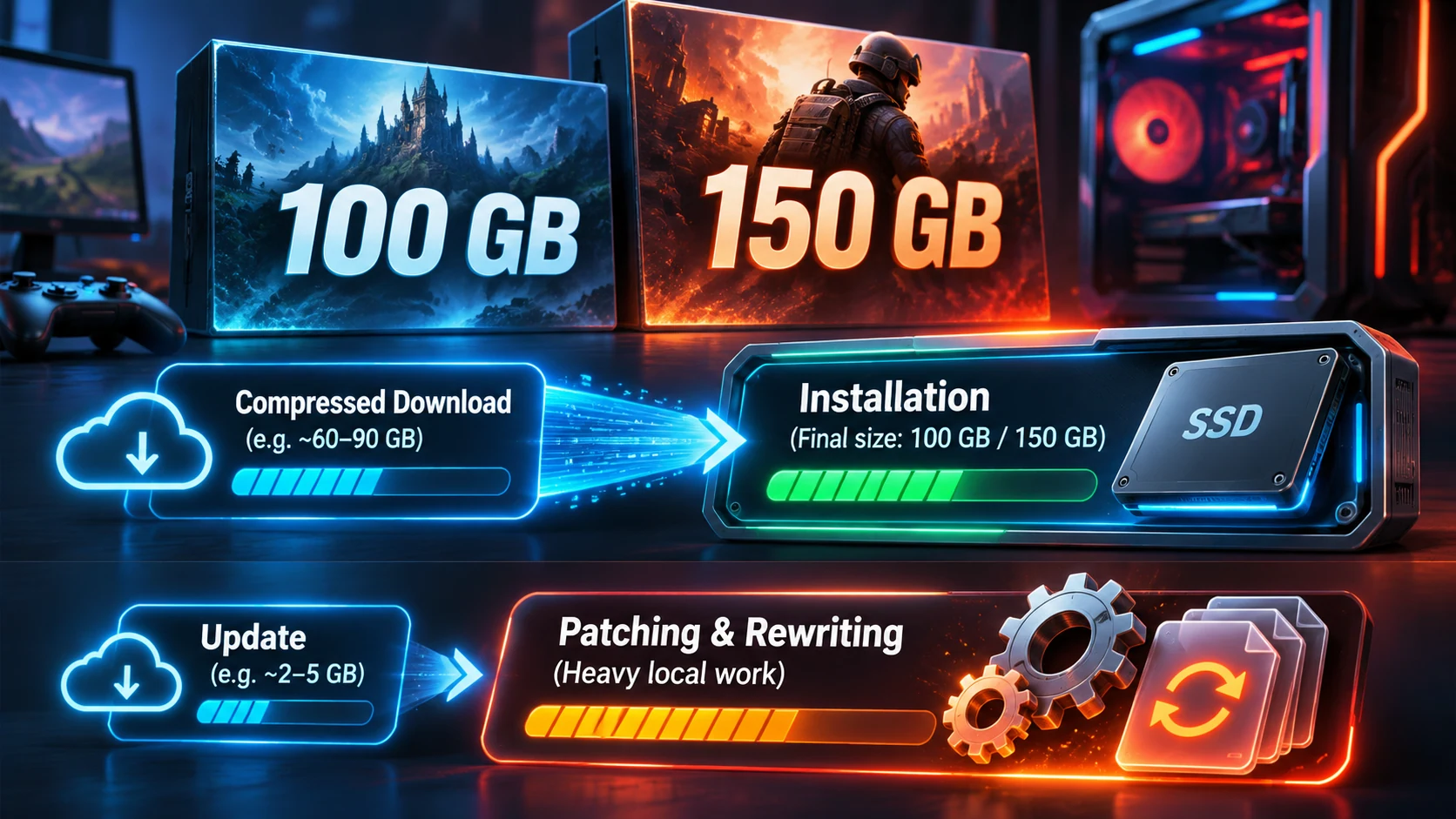
Modern games can demand substantial storage. High-resolution textures, cinematic audio, multiple language packs, mods and optional content increase what players must install or maintain. A 100 GB headline creates an intuitive expectation of a long download, but it leaves two essential questions unanswered: 100 GB of what, and at what stage?
A store's disk-space requirement describes a storage allocation needed for installation. Steam's actual download amount may differ because of compression, packaging and already-present files. An update can download comparatively little yet require heavy rewriting and verification. Conversely, a changed game pack can force more download or patch work than a simple “small update” headline implies.
| Scenario | Why the apparent size misleads | Better input |
|---|---|---|
| First-time large install | Compressed transfer differs from installed footprint | Steam's displayed amount to download |
| Small update to a huge game | Patching may read and rewrite large existing archives | Actual update transfer and observed disk work |
| New DLC or language pack | Optional content can increase required assets | Active selection shown in Steam |
| Reinstall after moving storage | Local data and download needs depend on what is present | Confirm Steam's pending transfer |
| Game preset from a store page | A storage requirement is not a byte-accurate network payload | Replace with actual Steam download size |
For 100 GB of actual transferred data, the ideal rate examples are simple: 100 Mbps is about 2 hours 13 minutes; 500 Mbps is about 26 minutes 40 seconds; 1 Gbps is about 13 minutes 20 seconds. Yet those figures exclude server constraints, wireless variability, network overhead, installation, unpacking and verification.
A game can be downloaded while the PC is not yet finished making it playable. This distinction matters when planning a launch-night session or an update before joining friends. If disk writes, antivirus scanning or game file validation create a delay, purchasing a more expensive broadband plan may not solve the problem.
And watch out for unconfirmed game sizes circulating in social posts. A screenshot purporting to show a future PC game's install requirement is not a reliable source unless the publisher or platform has officially provided it. Use current in-client figures whenever possible.
8. Wi-Fi vs Ethernet, VPNs and Household Traffic During Steam Downloads
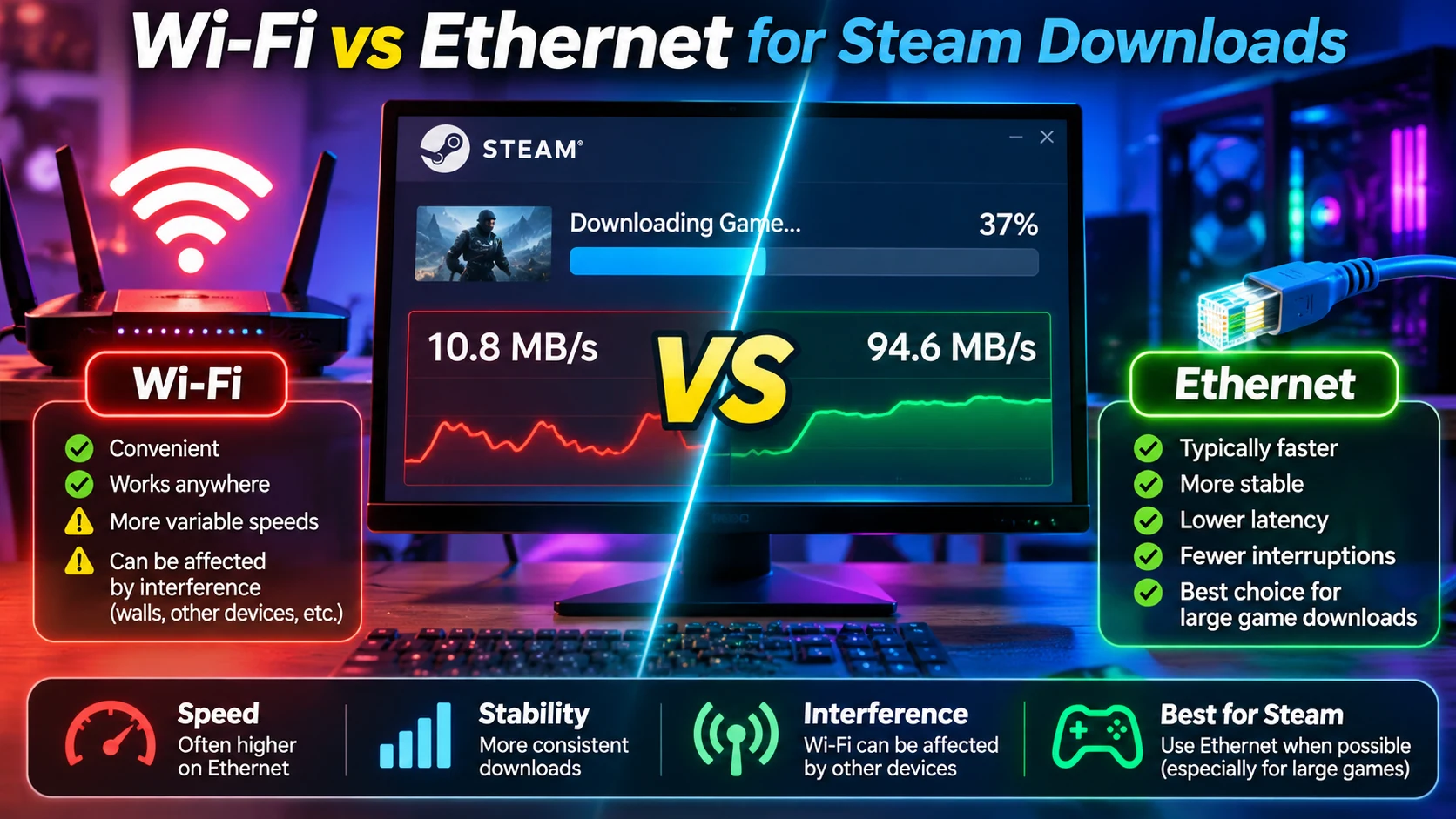
A fast fibre, NBN, cable or 5G connection does not automatically make every PC in the home equally fast. The gaming PC's actual path includes its network adapter, Wi-Fi radio or Ethernet cable, router, ISP and onward connection to Steam's content system. Each layer can affect transfer consistency.
Ethernet removes one variable: local radio interference. It does not magically overcome a congested ISP link or a slow Steam server, but it creates a cleaner comparison. If a download is slower in a distant bedroom than beside the router, local wireless conditions deserve attention.
Wi-Fi depends on placement, signal, band, interference, channel conditions, client capability and how many devices are sharing airtime. A full signal icon is not a guarantee of high throughput or clean latency under load. Run comparable tests on the same PC, at the same time, rather than comparing a fast phone on one Wi-Fi band with a different computer behind a wall.
VPNs can change the route and add overhead. Sometimes a route change coincides with improved performance; often it does not. Compare with and without the VPN while keeping the other conditions as consistent as possible. Our VPN Speed Test explains this performance comparison without equating a speed difference to a privacy or security verdict.
Busy households add another dimension. While a game downloads, others may be on video calls, streaming or uploading cloud backups. Saturating the line can increase queuing delay, so the optimal setting for the gamer is not always the best setting for everyone. Steam's bandwidth limiter may be useful intentionally when gaming, working and streaming happen together.
If you suspect an ISP or network disruption, cross-check with the independent Main Speed Test and, in Australia, our Telstra Speed Test guide if your connection is Telstra-related. The Telstra article explains why a strong line-speed result can coexist with router, Wi-Fi, peak-hour or provider issues. If a large regional issue is reported, our Cyber Radar investigation guide explains why an outage report should not automatically be labelled a cyberattack.
9. Why Steam Shows 0 MB/s During an Update — And How to Read the Graph
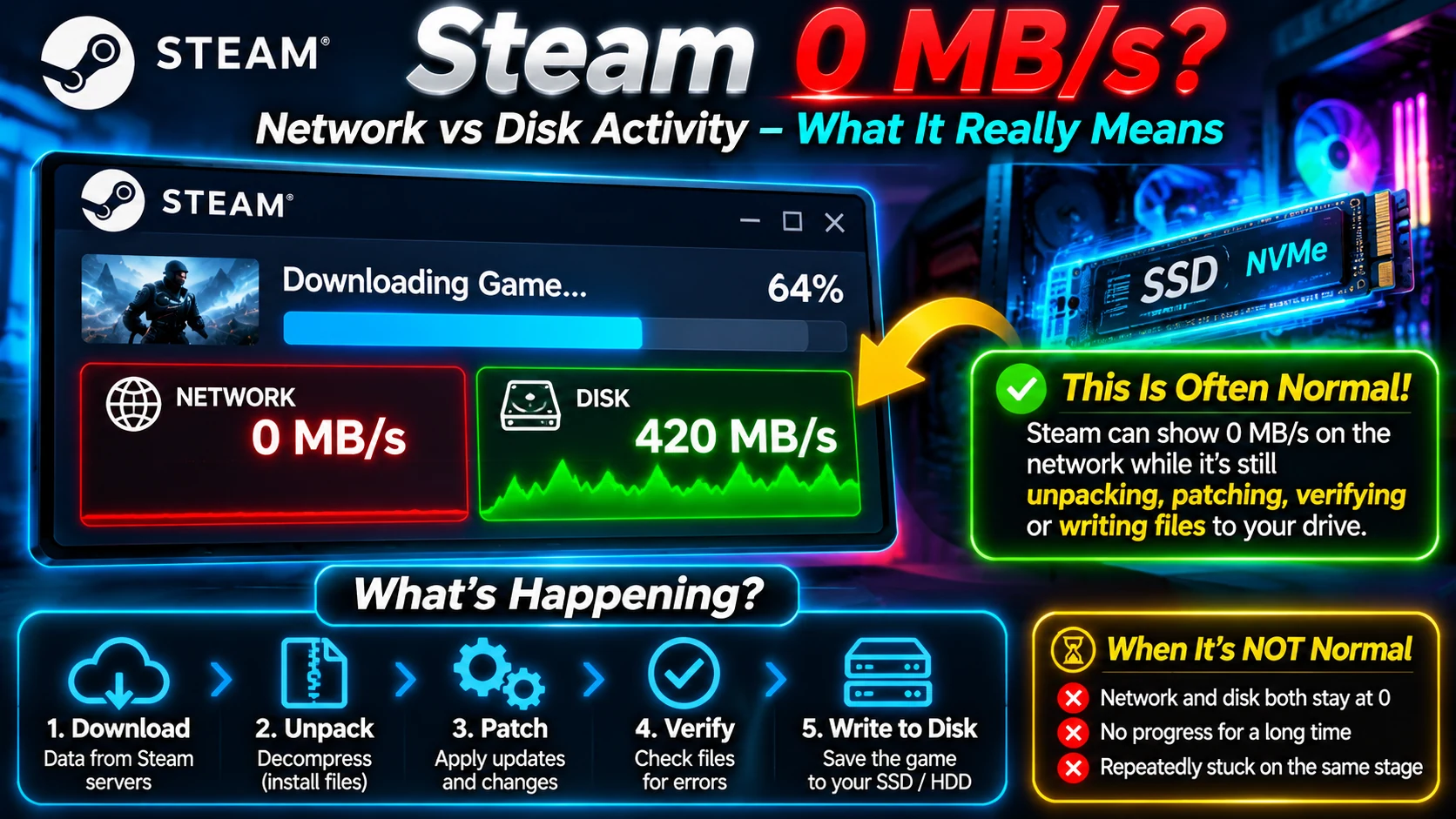
A progress graph that drops to zero is stressful. People often assume the transfer has failed because the familiar number vanishes. But Steam installs and patches games as well as downloading them. A quiet network graph may be accompanied by active disk operations, verification or unpacking. This does not prove that every zero is normal; it tells you what evidence to check.
Four observations worth recording
- Network activity: Is Steam receiving data continuously, intermittently or not at all?
- Disk activity: Does the drive remain busy when network transfer falls?
- Stage and progress: Is Steam downloading, installing, updating, verifying or waiting?
- Reproducibility: Does the same pattern recur for other games, at other times and on other drives?
If the disk remains active and installation progress advances, you may be witnessing local processing. If both network and disk stay idle for a long time while nothing progresses, investigate client errors, available storage, region or another fault. That is a stronger clue than a single zero shown on one graph.
Use Valve's Update & Installation Issues instructions for stuck downloads and damaged installs. Verify game files or repair a library when a reproducible installation error calls for it; avoid using these operations as daily rituals for normal temporary processing pauses.
Remember that downloading and playing are different activities. Valve documents that Steam can pause downloads when a game launches depending on download settings. If the apparent slowdown begins as soon as you start another title, check that configuration rather than assuming the router has failed. Steam: Downloads automatically pause when launching a game.
A useful diagnostic asks whether your bytes are moving over the network, your files are being processed locally, or neither is happening. That single distinction prevents a surprising amount of bad troubleshooting.
10. Beyond a Steam Speedometer: The Next Generation of Game Download Intelligence

Steam downloads make a compelling case for going beyond the conventional speed test. A speedometer can establish the network's baseline, but it does not know which content server Steam has selected, the compressed size of the next transfer, your SSD's current write behaviour, or the number of background tasks competing for CPU and network capacity.
A better consumer experience joins four things: a measured baseline, a meaningful game-size scenario, a structured troubleshooting path and honest limits on what the tool can observe. NextWatch AI's Steam Download Speed Test puts those pieces closer together, while leaving final verification where it belongs: the user's actual Steam client, PC and network conditions.
The practical Steam download checklist
- Measure your baseline on the same gaming PC using the NextWatch AI Steam Download Speed Test.
- Convert Mbps to MB/s before deciding that Steam is slow.
- Read the actual Steam transfer amount, not just the store's install-space requirement.
- Check Downloads settings for region, schedules and bandwidth limits.
- Compare one nearby region if downloads are consistently weak.
- Watch network and disk activity together; a pause can be local unpacking rather than stalled internet.
- Check storage health and free space, especially during large updates.
- Compare Ethernet to Wi-Fi where practical and limit competing traffic.
- Use cache clearing, library repair or file verification only when supported by the symptom.
- Record before/after evidence before contacting Valve, your ISP or equipment provider.
Steam download speed: common questions answered
Why is my Steam download so slow when my internet is fast? A speed test measures a route to a test endpoint. Steam uses its own content delivery network, and your local disk or CPU may also limit installation. Compare units, region, Steam's network graph and disk activity.
What is a good Steam download speed on 100 Mbps internet? The theoretical network ceiling is 12.5 MB/s before overhead and other limitations. A steady rate near that ceiling can be normal; real performance varies.
Is 800 Mbps the same as 800 MB/s? No. 800 Mbps equals 100 MB/s mathematically, before real-world overhead.
Why does Steam drop to 0 MB/s? It may be decompressing, patching, verifying or writing files. Check disk usage and installation progress; if both disk and network are idle without progress, investigate further.
What is the fastest Steam download region? There is no single universally fastest region. Valve recommends starting with a nearby region and comparing alternatives when your current region performs poorly.
Will clearing the Steam download cache delete games? Valve says it does not remove installed games, but you may need to sign in again. It is a troubleshooting action, not a guaranteed speed upgrade.
Does an SSD increase Steam download speed? It can reduce installation, writing and unpacking bottlenecks, especially compared with some slower HDDs. It cannot independently raise your broadband plan's maximum download bandwidth.
How long should a 100 GB Steam game take to download? If 100 GB is the actual transferred amount, roughly 2 h 13 min at a constant 100 Mbps, or 16 min 40 sec at 800 Mbps, ideally. Compressed bytes and installation work may change reality substantially.
Can NextWatch AI measure Steam's servers directly? No. Its browser test provides an independent baseline and estimates download scenarios; it does not claim direct access to Valve's CDN performance or your game's live Steam transfer.
Can a VPN make Steam faster? A VPN can change routing, but it often adds overhead and may reduce performance. Compare consistently and do not assume it is a universal fix.
Why is the Steam update small but installation takes ages? Game patching may need to read, transform and verify existing local files, producing substantial disk and CPU work relative to network bytes.
Is Steam download speed the same as in-game ping? No. Download throughput measures bulk transfer; game responsiveness also depends on latency, jitter, packet loss and the path to game servers.
The conclusion: the goal is to play, not stare at Mbps
The internet has changed since the first generation of speed tests. Our original article, From Dial-Up to AI, traces that transformation. The Telstra guide shows how the same lesson applies to national broadband, mobile access and home Wi-Fi. Steam turns the lesson into something every PC gamer understands: even an excellent network can be slowed by the path, the server, the local machine or the task of making a game playable.
A successful Steam download experience is not the one with the prettiest gauge. It is the one that helps you answer “How long should this take, what is holding it back, and what can I sensibly check next?”
For that reason, NextWatch AI treats a speed result as the beginning of an investigation, not a guaranteed Steam transfer speed. Measure the connection, understand the game-size assumptions, check the right bottleneck and get back to playing.
Sources and methodology
- Valve / Steam Support: Slow Downloads and Connection to Content Servers
- Valve / Steam Support: Update & Installation Issues
- Valve / Steam Support: Clear Download Cache
- Valve / Steam Support: Setting Download Speed Limits
- Valve / Steam Support: Download and Update Management
- Valve / Steamworks: SteamPipe Uploading and Content System
- Valve / Steam: Content Download Statistics
Editorial note: formulas use decimal GB and assume a constant transfer rate solely to illustrate scale. Values are not benchmarks of Valve's content servers. We do not claim access to private Steam client or PC storage telemetry from a browser.
Ready for a smarter Steam download estimate?
Measure an independent connection baseline, estimate your game download time and investigate the network and storage factors that affect real Steam performance.
Run the Steam Download Speed Test ↗